Tickets & Backlog
A ticket is one piece of work inside a project — a task, a bug, a story. Tickets are what the board, the backlog and sprints all move around. This article covers creating a ticket, what its detail page holds, and how the backlog works.
Applies to: Professional plan. Requires the pm:tickets:view permission.
Prerequisites: a project to hold the tickets. See Creating & Managing Projects.
Finding tickets
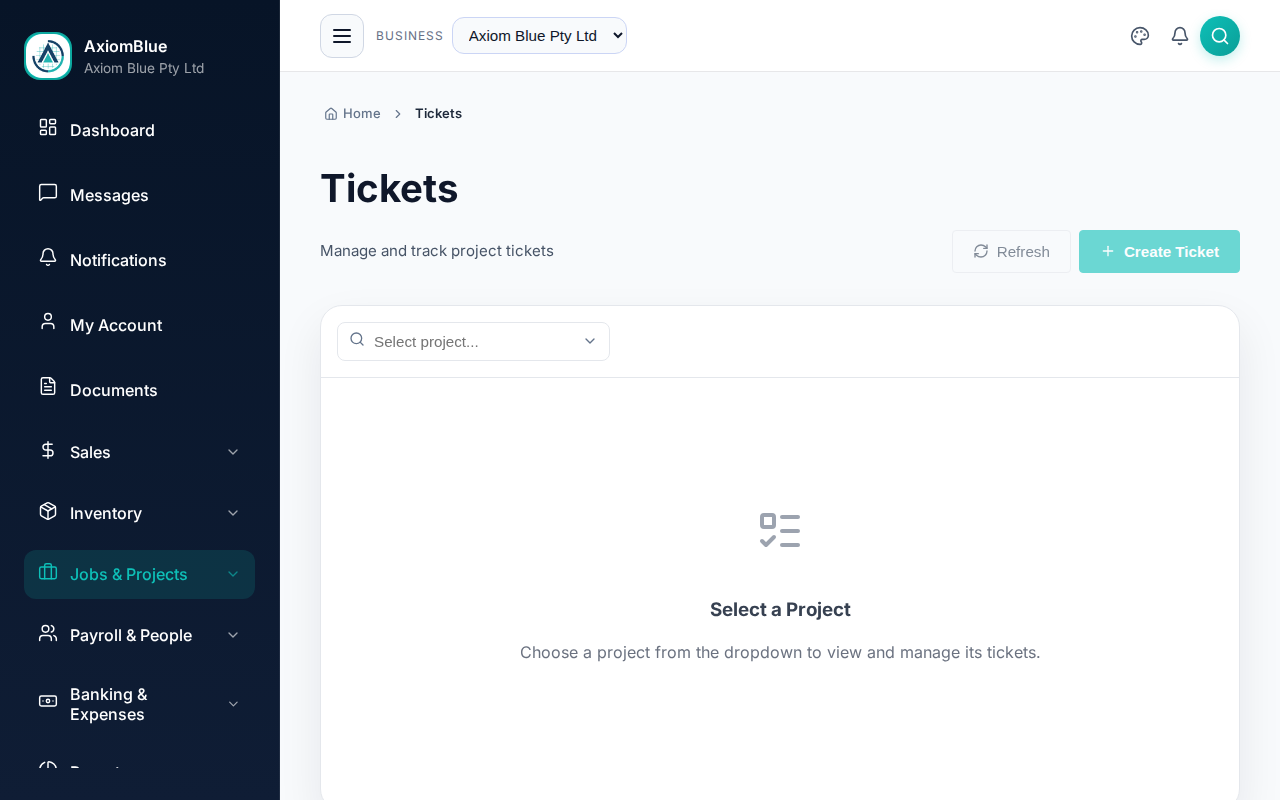
Go to Projects > Tickets, then pick a project from the Select project… box. Until you do, the page shows Select a Project and nothing else — that is expected, not an error. Opening the Tickets tab from inside a project skips the step.
Four counters sit above the list — Total Tickets, Open, Completed, Backlog — and the columns are Key, Title, Type, Status, Priority, Assignee, Points and Due.
Create a ticket
- Select Create Ticket.
- Enter the Title — the only required field.
- Choose the Type: Story, Task, Bug, Spike, Subtask, Milestone or Job.
- Set the Status and the Priority — Low, Medium, High or Critical.
- Set Story Points if your team estimates. The scale runs 1, 2, 3, 5, 8, 13, 21, plus None.
- Write a Description, and add a Time Estimate (hours) and a Due Date if they apply.
- Pick an Assignee.
- Add Labels — type one and press Enter, or select Add.
- Select Create Ticket.
Story points are a relative size, not hours: a 5 is roughly five times the effort of a 1. Sprints and epics add them up so you can see how much work a batch really holds.
The create form has no epic, feature or sprint picker. Set those on the ticket's detail page after you save it.
Ticket statuses
A ticket moves through Backlog, To Do, In Progress, In Review and Done, and can also be set to Closed. Closed tickets show in the Done column on the board rather than disappearing.
The ticket detail page
Select a ticket to open it. Editable in place: Title, Priority, Story Points and Due Date. Editing turns on a Save Changes button; Dismiss throws the edit away.
The page carries:
- Description
- Comments — a discussion thread, with the count in the tab
- History — every field change, logged automatically
- Links — the Epic, Feature and Sprint this ticket belongs to. Feature stays locked until you pick an epic.
- Details — assignee, reporter, estimate, time spent, created and updated
- Labels — shown only when the ticket has some
The backlog
The Backlog tab lists work that is not in a sprint yet, with a running count of items and points. Two things happen here:
- Groom turns on estimating mode, so you can set points on each item with a single selection instead of opening every ticket.
- Selecting rows brings up a sprint picker, which moves them into a sprint in one go.
Bulk changes
Bulk changes live on the Board, not on this list. Tick tickets there and the bulk bar offers Move to… for status and Set priority…. See Kanban Boards.
Tip: Write a title anyone on the crew could act on. "Replace the switchboard in unit 4" beats "Switchboard" — the second one costs someone a phone call to work out.