Messages & Notifications
AxiomBlue carries its own internal mail, so your team can talk about a job without leaving the portal. A separate notification system tells you when something needs you. This article covers both, and how to turn the noise down.
Applies to: every plan. Messages and notifications need no permission. The SMS folder is the exception — it appears only for users with the messaging:sms:view permission.
Prerequisites: Navigating the Portal
Messages
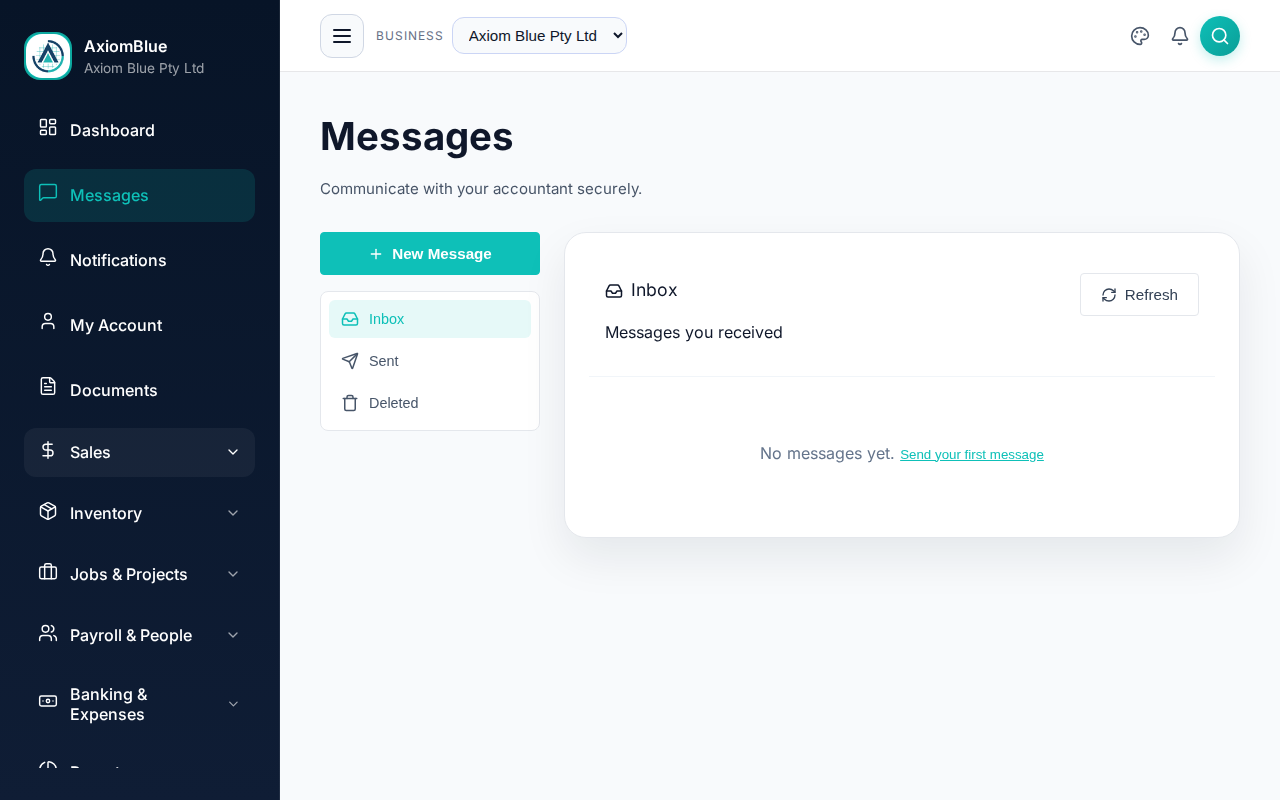
Open Messages from the top of the sidebar. Folders run down the left of the page:
- Inbox — messages you received. The count beside it is unread mail.
- Sent — messages you sent
- Deleted — messages you removed, kept until you delete them permanently
- SMS — texts sent from your business, for users with SMS access
Send a message
- Select New Message. On a phone, use the round + button at the bottom right.
- Pick a recipient in the To field — one person per message.
- Enter a Subject.
- Write the Message — the toolbar gives you bold, italic, underline, bullet lists and numbered lists.
- Select Send Message.
To add a picture, use the image button in the toolbar, or paste one straight into the message body with Ctrl+V. Images are the only attachment type.
Reply, delete and restore
Select any row to open the message. Type into the reply box at the top and select Send Reply to answer it.
The bin icon on a row in Inbox or Sent moves that message to Deleted straight away. In Deleted, the bin icon removes it for good and asks you to confirm first; the arrow icon beside it puts the message back.
Refresh in the folder header re-reads the folder and its counts.
Current limits: messages have no search, no archive folder, no forwarding, and no group recipients. Permanent deletion cannot be undone. For anything you'll need to find again, put it on the job record instead of in a message.
Notifications
The bell in the top bar carries a badge with your unread count, capped at "99+". AxiomBlue re-checks the count every minute.
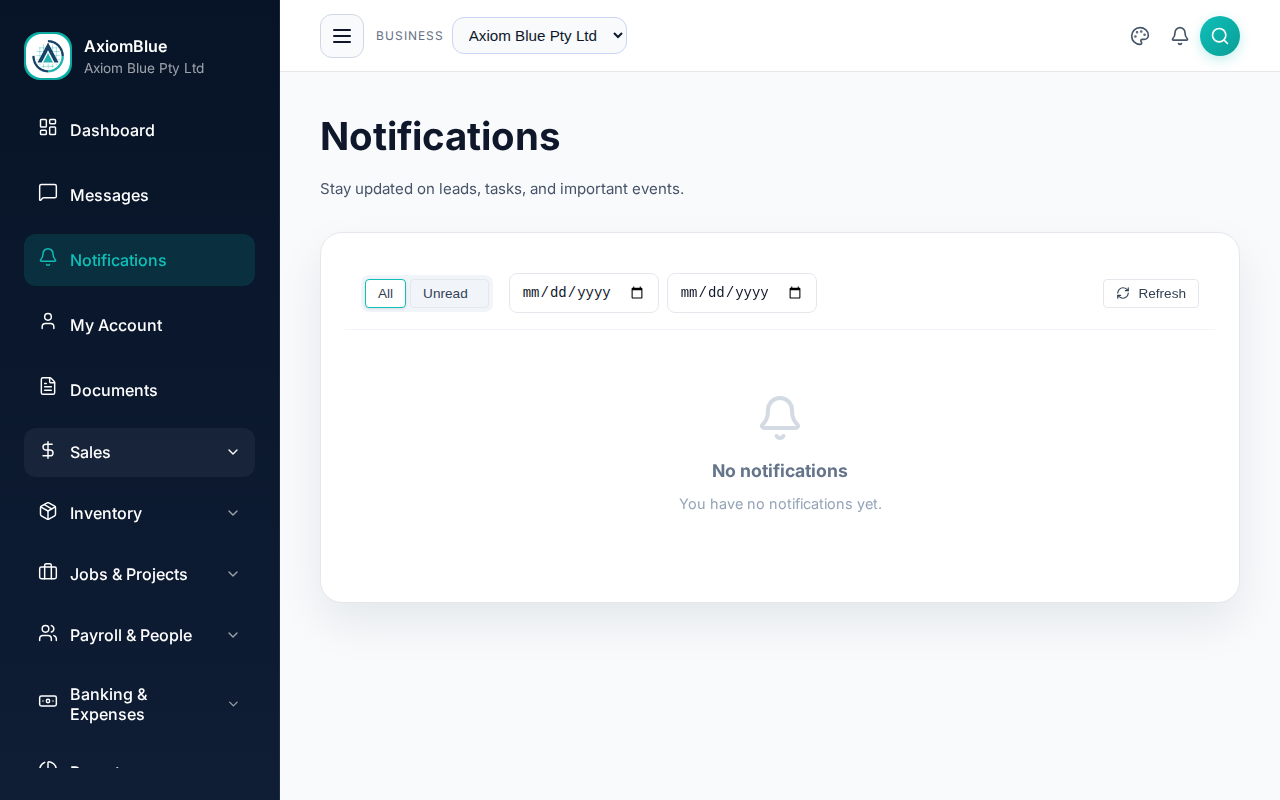
Select the bell to open the list. From there you can:
- Select any notification to open the record it refers to
- Select Mark all read to clear the badge
- Select View all notifications for the full history
Choose which notifications you get
Go to Settings > Personal Settings and open the Notifications tab. Each category has an In-app toggle and an Email toggle, and you can set them independently:
- New Lead Assigned — when a lead is assigned to you
- Task Assigned — when a task is assigned to you
- Task Due / Overdue — reminders for upcoming and overdue tasks
- Job Assigned — when a job is assigned to you
- Lead Activity — updates on leads you're assigned to
- Added to Crew — when someone adds you to a crew
- Business Alerts — everything else from your business, including automatic timesheet alerts and messages sent by workflows
Each toggle saves the moment you flip it — a "Saving..." banner confirms it. There is no separate Save button, and no SMS channel for these alerts.
What you should see
An inbox that reflects the folder you picked, and a bell whose badge matches your unread notifications. Switching a category's Email toggle off stops the emails without touching the in-app alerts.
Tip: Drowning in email? Leave every In-app toggle on and switch Email off for the routine categories, keeping it only for Job Assigned and Task Due / Overdue. The bell still catches everything while you're in the portal.