Setting Up Your Business
Your business profile supplies the name, ABN, logo and address that appear on every quote and invoice you send. It also sets the timezone the scheduler works in. Fill it in before you raise your first quote.
Applies to: all plans. Requires the business:settings:manage permission, which business owners hold by default. Business Settings is hidden in the demo account.
Prerequisites: Navigating the Portal.
Open Business Settings
Go to Settings > Business Settings in the sidebar. The page opens on an index of every settings section, grouped under six headings.
- Your business
- Sales & Customers
- Work
- Money
- Stock & Suppliers
- People
Each row names what it holds. A search box sits above the groups: type what you are after, such as GST or overdue. It takes you straight to the section, and to the individual switch where there is one.
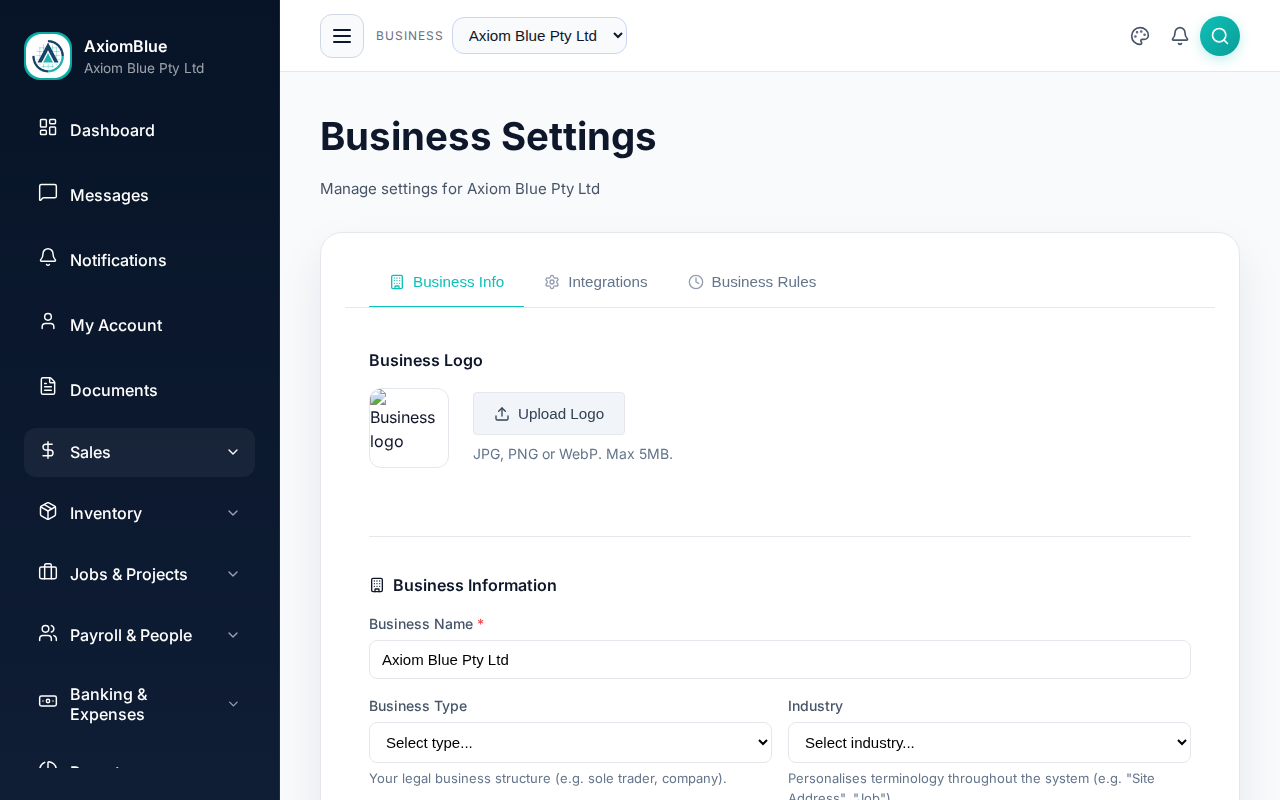
Fill in your business details
Open Business Info, under Your business. It holds six blocks.
Business Logo
Select Upload Logo and choose a JPG, PNG or WebP file up to 5 MB. The logo appears on your quote and invoice PDFs.
Business Information
- Business Name — required. This is the name shown on quotes and invoices.
- Business Type — Sole Trader, Partnership, Company (Pty Ltd), Trust, Non-Profit / Association, Cooperative, Franchise or Other.
- Industry — changes the wording used across the portal, so a landscaper sees "Site Address" where a consultancy sees something else.
- Trade Types — tick every trade you work in. This controls which trade-specific features appear. Ticking HVAC switches on refrigerant logs, Electrical switches on test & tag. General Business keeps the portal to the core features; Multi-Trade Contractor switches everything on.
Regional Settings
- Timezone — required. Scheduling, reporting and every date in the portal use it.
- Primary Operating State — the state you mostly work in.
Contact Information
Email, Phone and Website. These print on your documents, so customers reply to the right address.
Business Address
Street Address, Address Line 2, Suburb, State, Postcode and Country. Start typing into Street Address and the address lookup offers matches. This address is also the default home base the scheduler measures travel time from.
Tax & Compliance
- ABN — your eleven-digit Australian Business Number. It is shown on invoices and quotes, and the field reformats what you type into the standard spacing.
- GST Registered — tick this when your business is registered for Goods & Services Tax. AxiomBlue then applies GST to taxable quotes and invoices.
What you should see
There is no Save button. Business Info saves as you type: a Saving… label appears at the top of the section, then a green tick when the change is stored. Clearing Business Name stops the auto-save, so the last saved name stays in place.
Trade Types hide features as well as reveal them. Unticking a trade removes its section from the sidebar. The records stay in the database, but you lose the screens that reach them until you tick the trade again.
The rest of the settings index
The other rows configure a single area each:
- Payments & Billing — how customers pay you: bank transfer, PayID, cheque, and card through Stripe. It also holds the billing rules that turn recorded time into money.
- Nine domain sections — Lead, Quote, Job, Invoice, Project, Inventory, Purchasing, People and Communication Settings. Each holds the automatic actions for its own area.
- Integrations — connect Xero, MYOB, payment providers and CRMs.
- Customer Portal — switch on the site your customers sign into to see their jobs, respond to quotes and pay invoices.
- Backup — download everything this business holds as a single
.zip.
Tip: if you run more than one business, each keeps its own settings. Switch between them with the business picker in the top bar.