Navigating the Portal
The portal has three parts: a sidebar down the left, a top bar across the top, and the page itself in the middle. This article names everything in the sidebar so you can find a screen without hunting for it.
Applies to: every plan. You see only the sections your permissions allow, so your sidebar is probably shorter than the full list below. Items your plan doesn't include still appear, with a padlock, and send you to Settings > Subscription & Billing. Some items also depend on your business's Trade Types. See Understanding Roles & Permissions.
The sidebar
The sidebar is your main navigation. Three items sit at the top as direct links, then the rest group into collapsible sections.
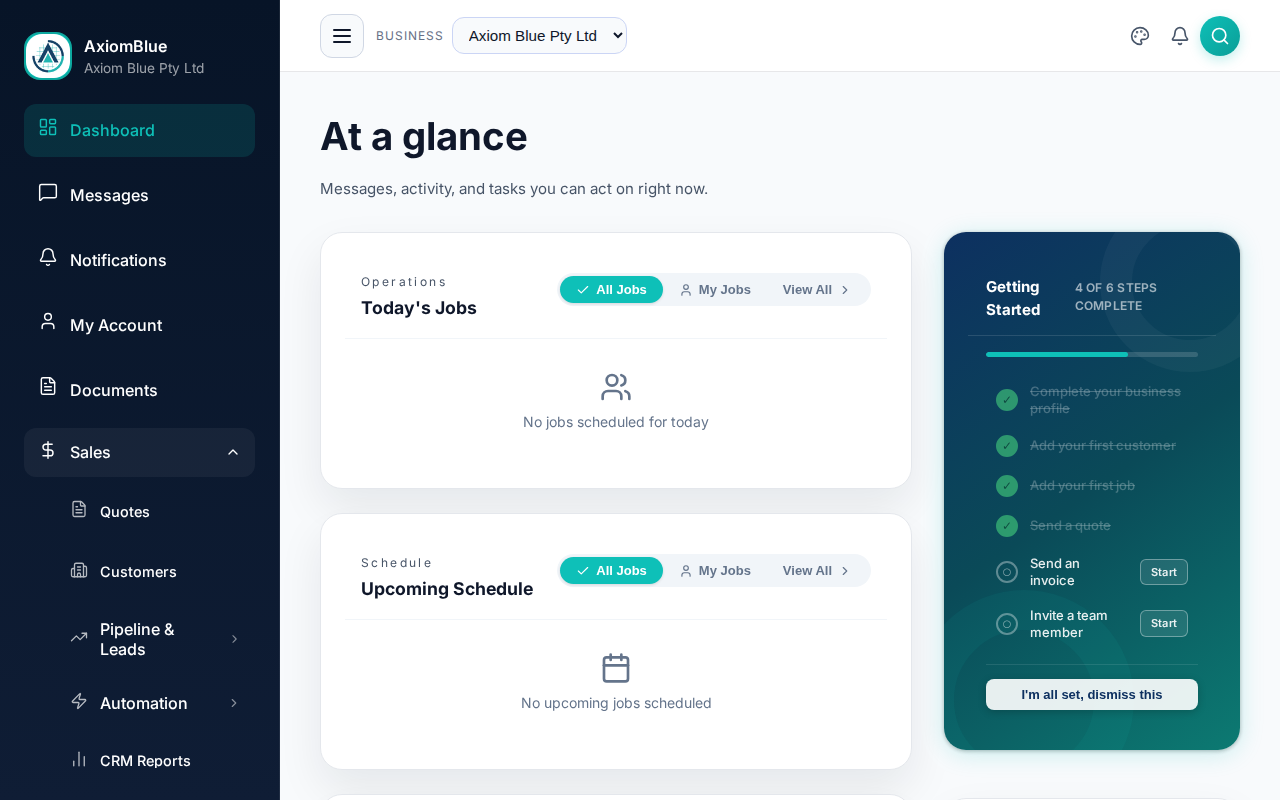
Top-level links
- Dashboard — the exception-first summary you land on after signing in
- Messages — internal mail between people in your business
- Documents — your document library, shown when you have document access
Sections and what's inside them
The sections appear in this order:
- Sales — All Leads, Lead Pipeline, Quotes, Customers, Tasks
- Inventory — Products & Services, Suppliers, Assets
- Jobs & Crews — All Jobs, Calendar & Schedule, Dispatch Map, Job Series, Crew Management, Compliance
- Projects — All Projects, Tickets
- Employees — All Employees, Timesheets (All Timesheets, Approvals, My Timesheets), Subcontractors, Leave Management
- Banking & Expenses — Accounts Payable, Accounts Receivable
- Reports — fourteen reports and dashboards, listed below
- Workflows — All Workflows
- Settings — Personal Settings, Business Settings, Subscription & Billing, Seats & Licenses, Email Templates, PDF Templates
Two entries in Jobs & Crews open a further level rather than a page:
- Crew Management holds Crews and Skills.
- Compliance holds Certificates, Test & Tag and Refrigerant Logs. The whole group is hidden unless your business's Trade Types call for it — refrigerant work switches on Refrigerant Logs, electrical work switches on Certificates and Test & Tag.
Reports holds:
- Aged Payables and Aged Receivables
- Billing Reconciliation
- Cancellation Analytics
- Client Retention
- Crew Throughput
- Customer Dashboard, Financial Dashboard and Sales Dashboard
- Employee Utilisation and Timesheet Submission
- Payment Behaviour
- Recurring Services Health
- Revenue Mix & Pipeline
Employee Utilisation and Timesheet Submission appear for anyone who can view all timesheets, even without the finance reports permission.
Platform administrators see one further section, Administration, below Settings. Logout always sits last.
The sidebar has moved before. Purchasing folded into Inventory, and ATO Compliance folded into Banking & Expenses. If an older guide sends you to either, look in the section that absorbed it.
Expanding and collapsing sections
Select a section header to open it, and again to close it. Three sections stay open at once. Open a fourth and AxiomBlue closes whichever you opened first.
Resizing the sidebar
On desktop, drag the right edge of the sidebar to resize it between 180 and 400 pixels wide. Your browser remembers the width for next time.
The top bar
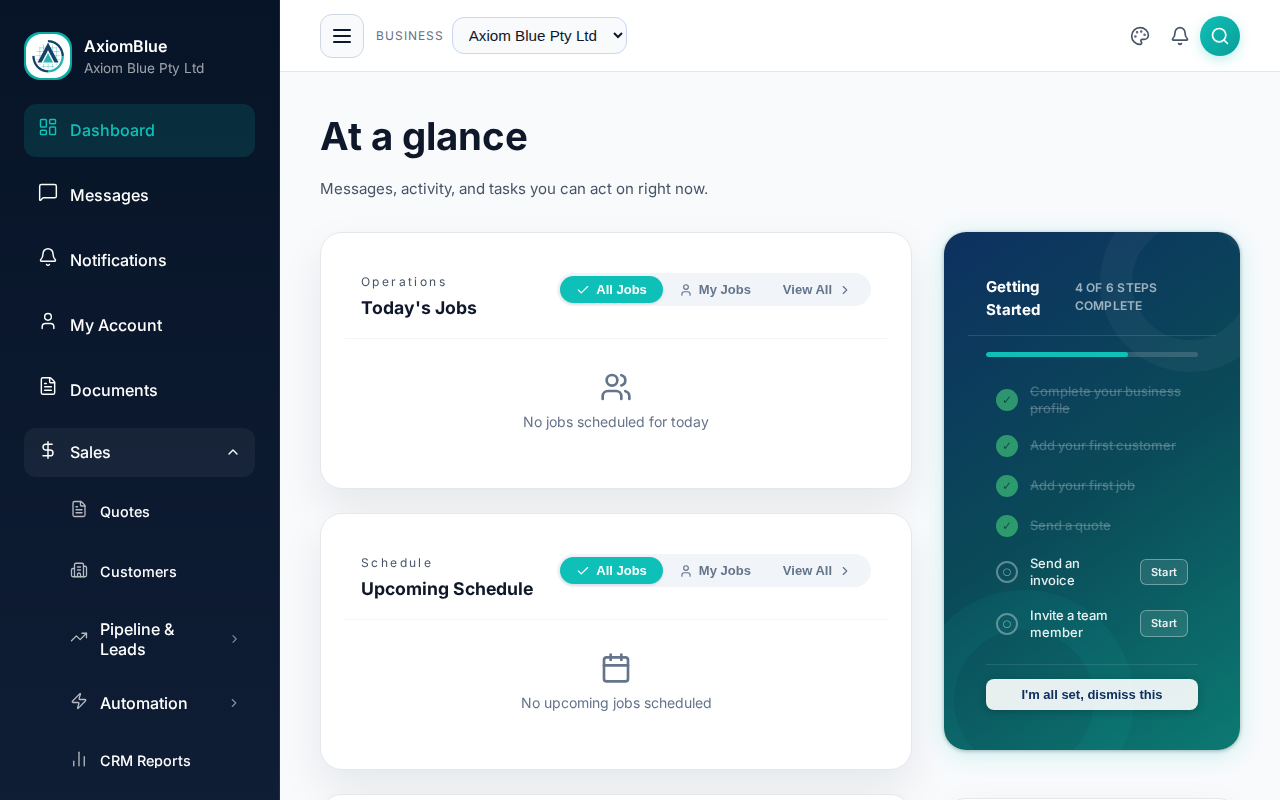
From left to right, the desktop top bar carries:
- Business — a dropdown listing every business you belong to. Choose one to switch the whole portal to it.
- A trial countdown with an Upgrade link, while your trial is running
- The notification bell, badged with your unread count
- Search — opens global search.
Ctrl+K(orCmd+Kon a Mac) opens it from anywhere - Your avatar, which opens a menu with My Settings, Business Settings and Log out
Page layouts
List views
List views show a collection of records — customers, invoices, jobs. Each carries search and filters at the top, a sortable table, and a create button such as New Job.
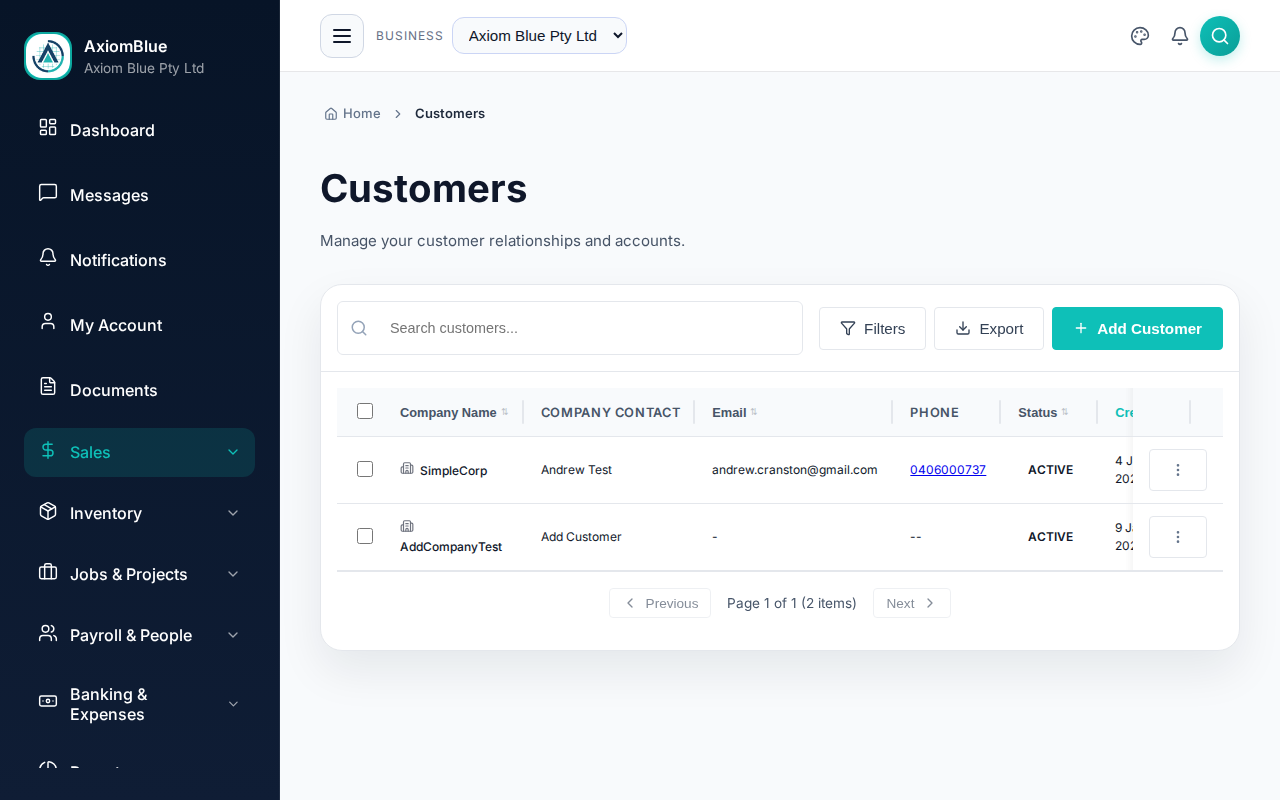
Selecting a row opens that record's full detail page. For a side-panel preview instead, turn on Show quick view panels on row click under Misc Options in Personal Settings.
Detail pages
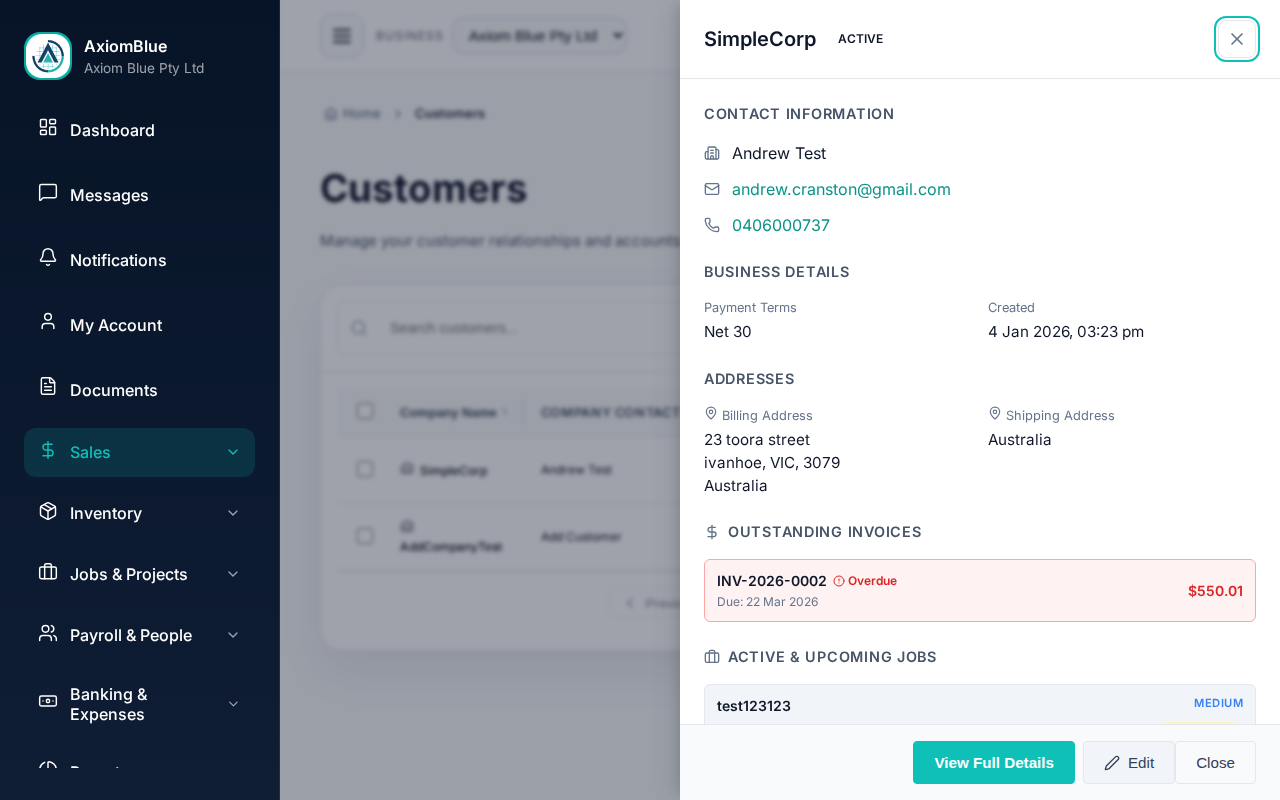
Detail pages show one record in full, using cards and tabs. Action buttons such as Edit and Delete sit in the page header.
On a phone or tablet
The sidebar becomes a drawer. Select the hamburger icon at the top left to open it; it closes again as soon as you pick a destination. A bottom bar gives you five one-tap destinations: Dashboard, Jobs, Quotes, Projects and Finance. On a detail page the hamburger is replaced by a back link to wherever you came from.
Tip: Global search is the fastest way around. Press Ctrl+K, type a customer name, a job number or a screen name, and go straight there without touching the sidebar.