Personal Settings & Your Profile
Your account page holds the settings that belong to you rather than to your business. That covers your name and photo, your password and two-factor authentication, your active devices, and which notifications reach you.
Applies to: every plan and every user. No permission gates this page — everyone can manage their own account. The Notifications and Calendar tabs appear only once a business is selected.
Prerequisites: Navigating the Portal
Open your account
Go to Settings > Personal Settings in the sidebar, or select your avatar in the top bar and choose My Settings. Both open the Account page, which splits into four tabs: Profile, Security, Notifications and Calendar. Calendar puts your jobs in your own calendar; see Put your jobs in your calendar.
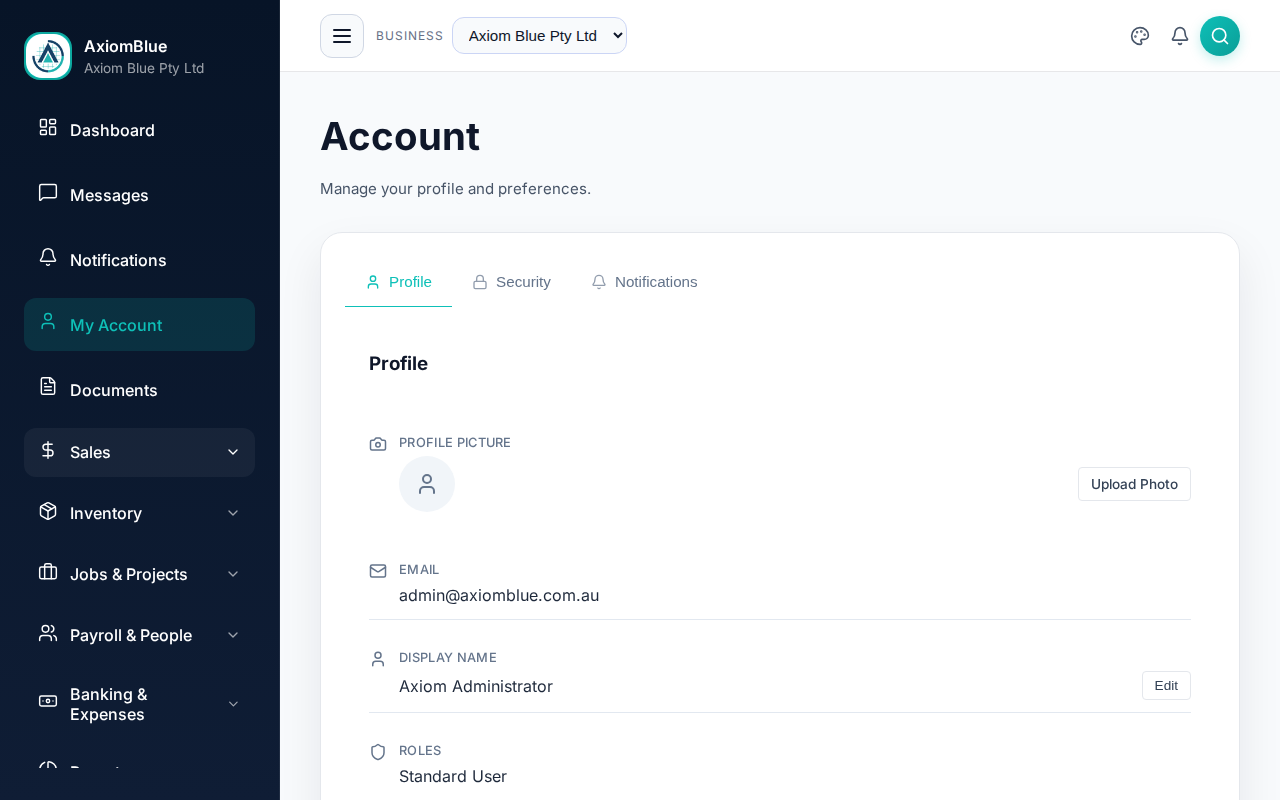
Profile
The Profile tab holds:
- Profile Picture — your avatar throughout the portal
- Email — read-only. Ask your administrator to change it.
- Display Name — the name others see on jobs, messages and activity
- Roles — the roles you hold, shown as badges. Read-only.
- Language and Time Zone — your regional preferences
- Default Business — auto-selected when you log in, if you belong to more than one
Change your display name
- Select Edit beside Display Name.
- Type the new name in the field that appears.
- Select Save. Cancel discards the change.
Change your profile picture
Select Upload Photo, or Change Photo if you already have one, and pick a JPEG, PNG or WebP image. It uploads and applies straight away — there is nothing further to save. Remove takes you back to your initials.
Misc Options
Two preferences sit at the bottom of the Profile tab:
- Show quick view panels on row click — off by default, so selecting a row in a list opens the full detail page. Turn it on to get a side-panel preview instead.
- Reset Guided Tour — select Reset to clear your tour completion, then visit the dashboard to take the tour again. Desktop only.
Sign out at the foot of the tab signs you out of this device.
Security
Change your password
- Open the Security tab and select Change Password.
- Enter your Current Password.
- Enter your New Password, then repeat it in Confirm New Password.
- Select Change Password in the dialog.
Two-factor authentication
Two-factor authentication (2FA) asks for a code from your phone as well as your password. Under 2FA Status, select Enable 2FA and follow the setup to scan the code into your authenticator app. Once it's on, the status shows 2FA: Enabled and the button becomes Disable 2FA, which asks for your password before switching it off.
Save your backup codes. The last step of 2FA setup, Save Your Backup Codes, lists a set of codes and asks you to tick I've saved my backup codes. Each code works once, and they are the only way in if you lose your phone. Store them somewhere other than that phone before you tick the box.
Active Sessions
Under Session Management, AxiomBlue lists every device you're signed in on, with its IP address and when it was last used. The one you're on carries a Current badge. Sign out a single device with the button on its row, or clear the lot with Sign out all other devices.
Notifications
The Notifications tab controls which alerts reach you and by which channel. It is covered in Messages & Notifications.
What you should see
Changes apply as soon as you make them — a green confirmation for the profile fields, a "Saving..." banner on the notification toggles. Nothing on this page affects anyone else in your business.
Tip: Review Active Sessions now and then, especially after using a shared or public computer. A device you don't recognise is a reason to sign out all other devices and change your password.