Skills & Certifications
Skills record what your people are qualified to do — licences, certifications and trade skills. Define them once, assign them to employees, and the auto-scheduler will only send jobs that need a skill to crews that have it.
Applies to: anyone with the erp:operations:skills:view permission. Creating and editing skill definitions needs erp:operations:skills:create and erp:operations:skills:edit. Assigning a skill to a person also needs erp:hr:employees:edit.
Prerequisites: Setting Up Employees
Where skills live
Go to Jobs & Crews > Crew Management > Skills. The page is titled Skill Management. Skills sit under Jobs & Crews rather than Business Setup, because scheduling is what consumes them.
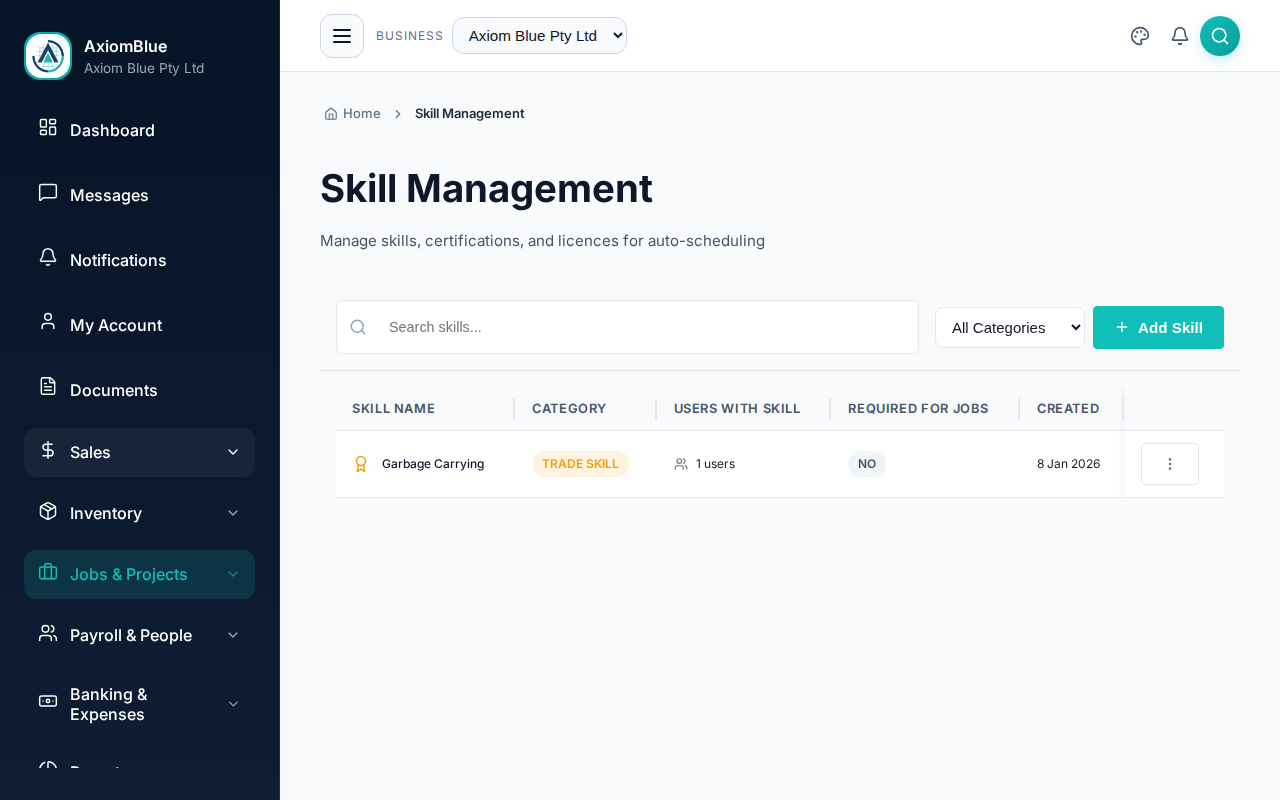
Each row shows Skill Name, Category, Users with Skill, Required for Jobs and Created. Search by name, or filter by category.
Define a skill
- Select Add Skill.
- Enter the Skill Name — for example
Forklift Licence,First AidorElectrical. Up to 100 characters. - Choose a Category — Licence for a legal requirement, Certification for an industry standard, or Trade Skill for a specialised ability.
- Tick Required for job assignments if this skill gates the work. The auto-scheduler then only assigns jobs needing this skill to crews that hold it.
- Set the Proficiency Levels — drag to reorder them, select one to rename it, or add and remove levels. Clear every level if this skill has no meaningful levels.
- Select Create Skill.
What you should see
The skill appears in the list with 0 users against it, ready to assign.
Assign a skill to an employee
Skills are assigned from the person, not from the skill.
- Go to Employees > All Employees and open the employee.
- On the Skills & Certifications card, select Add Skill.
- Select the skill from the list. Skills the employee already holds are not offered.
- Choose a Proficiency Level, if the skill has any defined. Skills with no levels say so instead.
- Select Save.
The skill appears on the card with its proficiency level next to it. Select the × beside a skill to take it away again.
Employee skills carry no expiry date. There is no renewal reminder and no expiring-certifications list for them. For dated records that warn you before they lapse, use Jobs & Crews > Compliance > Certificates, which tracks expiry. That section appears only for businesses whose trade types enable compliance certificates.
Crew skills
Open any crew and the Crew Skills & Certifications card lists everything its members hold between them. It is a quick read on what that crew is qualified to take on.
The card is filled from the employees. An empty card means the crew's members have no skills assigned yet.
Skills and scheduling
Marking a skill Required for job assignments is what makes it matter. The auto-scheduler reads it when matching jobs to crews, so a job needing that skill never lands on a crew without it. Skills you leave unticked are recorded for reference only.
See Auto-Scheduler & Schedule Health for how the matching runs, and Managing Crews for building the crews it schedules.