Setting Up Employees
An employee record holds someone's contact details, employment details and cost rate. It is separate from their portal login — a person can have a record here without ever signing in.
Applies to: anyone with the erp:hr:employees:view permission. Adding a record needs erp:hr:employees:create. Pay rates are gated separately by erp:hr:employees:financials, shown in the permissions screen as Employee Financial Details.
Prerequisites: Understanding Roles & Permissions
What AxiomBlue does with pay rates
An employee record carries two rates, and they do different jobs:
- Cost rate (per hour) — what an hour of this person's time costs you: wage plus on-costs such as super and insurance. Job costing counts their time at this rate, so a job's labour cost and margin depend on it. Customers never see it.
- Hourly Rate — the last-resort billing rate when no customer, project or business hourly rate is set and Use employee's hourly rate in labour calculations is ticked. Customer rates take priority, followed by project rates and then the business standard rate.
Each time entry keeps the cost rate in force when it was recorded, falling back to the employee's hourly rate if no cost rate is set, so a pay rise changes the cost of new work, not work already done. Time with neither rate is shown as uncosted on the job. See How job cost and margin are worked out.
AxiomBlue does not calculate wages, produce pay runs, or lodge anything with the ATO. It stores no tax file numbers, no bank account details and no fund details for employees.
View your employees
Go to Employees > All Employees.
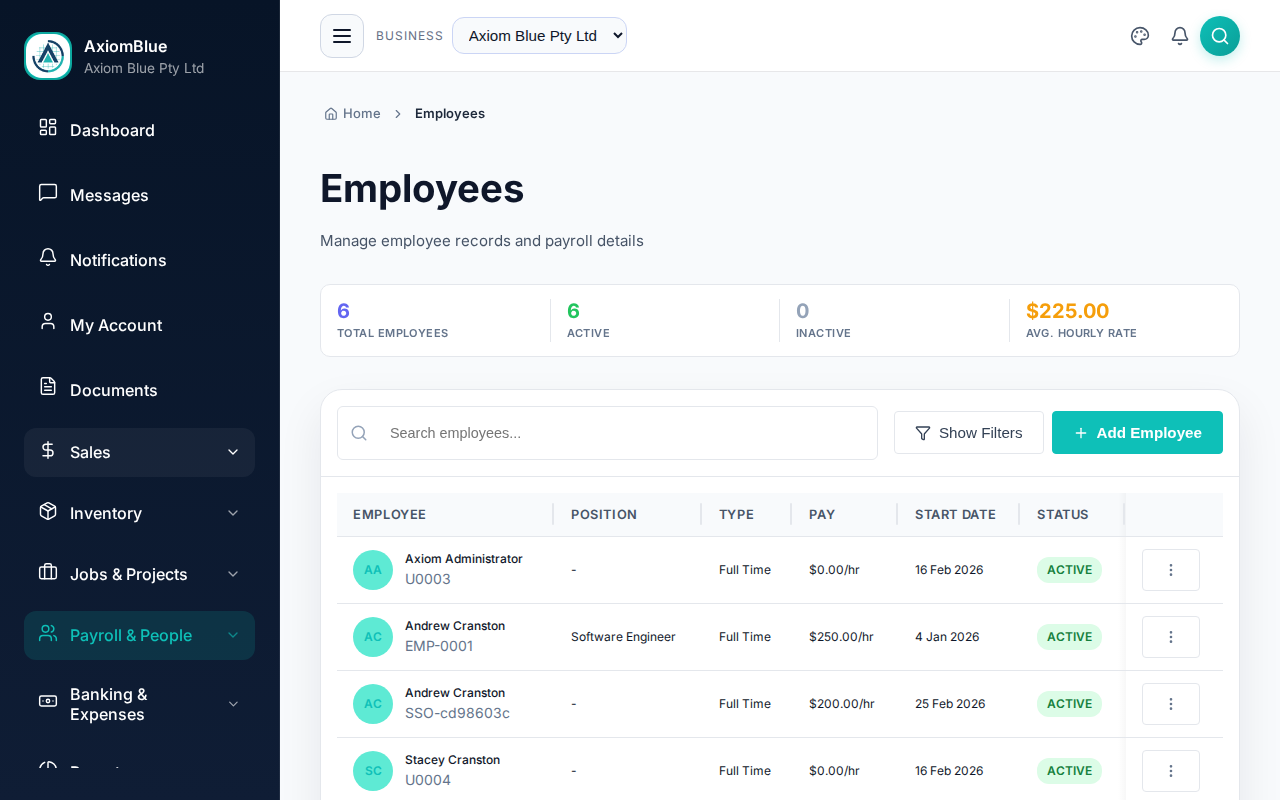
Each row shows Employee (name and employee number), Position, Type, Start Date and Status. A Pay column appears only for users who hold Employee Financial Details.
The search box needs at least three characters before it runs. Select Filters to narrow by Status, Employment Type, Start Date From and Start Date To.
Add an employee
Select Add Employee. First Name, Last Name and Start Date are required; everything else can wait.
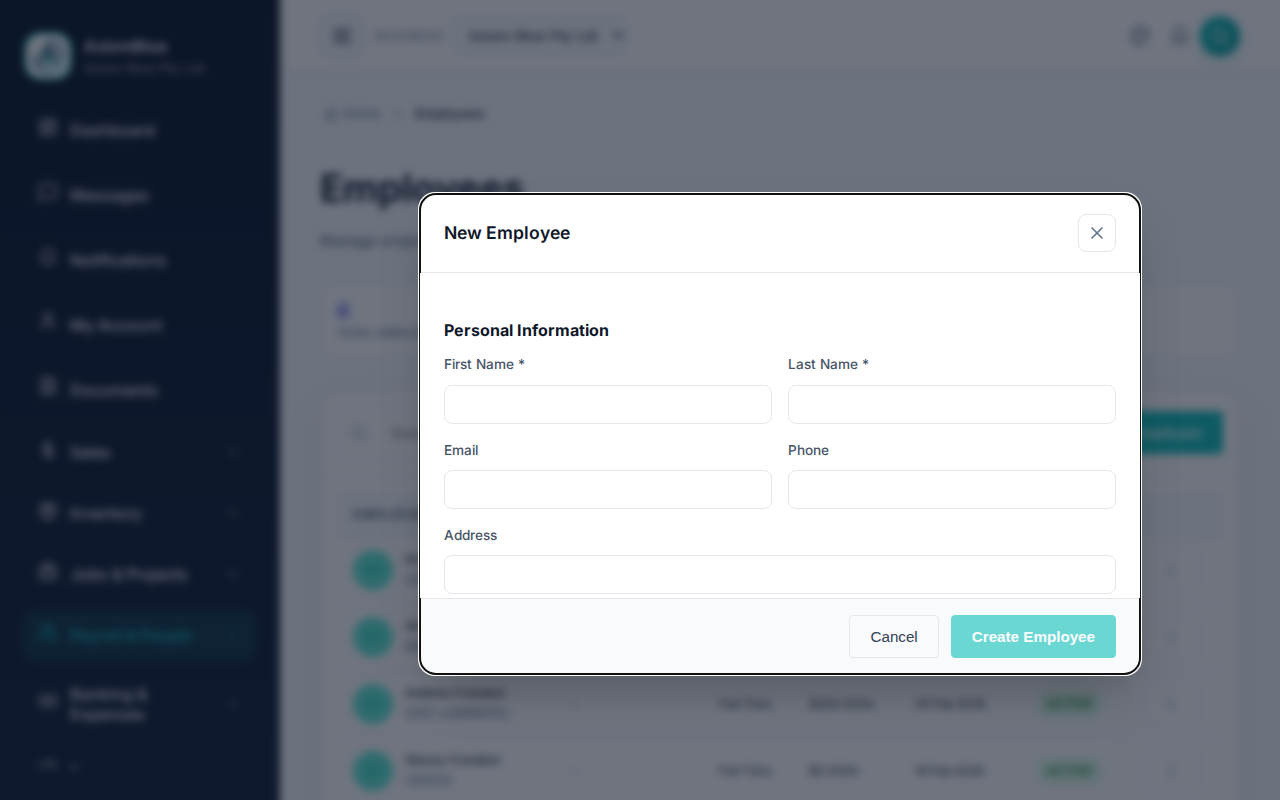
- Fill in Personal Information — first and last name, email, phone, and the home address across Address, Suburb, State and Postcode.
- Set the Scheduling home base — choose Business home base or Employee's home address. This is where the auto-scheduler measures travel from.
- Fill in Employment Details — Position Title, Department, Start Date and Employment Type (Full Time, Part Time, Casual or Contractor).
- Fill in Pay Details — Pay Frequency, Pay Basis, then either Hourly Rate or Annual Salary, plus Hours per Week. This whole section is hidden without Employee Financial Details.
- Add an Emergency Contact — Contact Name and Contact Phone.
- Select Create Employee.
What you should see
The new employee appears in the list with status Active and an employee number AxiomBlue assigns.
Enter the address properly. The auto-scheduler needs a street line and a suburb to locate an employee. A street on its own cannot be geocoded, so travel time falls back to a worst-case guess.
The employee page
Select an employee to open their page. It has two tabs, Details and Permissions.
The Details tab holds these cards, each editable in place:
- Personal Information — name, email, phone.
- Employment Details — Employee Number, Position Title, Department, Employment Type, Start Date, End Date and Status.
- Pay Details — Pay Basis (Hourly, Salary or Commission), Pay Frequency, Hourly Rate and Cost rate (per hour). Then the Use employee's hourly rate in labour calculations tick box and Annual Salary. Clear Cost rate to leave it unset.
- Address.
- Emergency Contact.
- Login & Access.
- Skills & Certifications — see Skills & Certifications.
Turn off Use employee's hourly rate in labour calculations to disable this person's fallback billing rate. Customer, project and business hourly rates always take priority. It doesn't change what their time costs you; that is the cost rate.
Give an employee access
Access takes three separate things, all on the Login & Access card:
- Select Set Password and give the employee a password to sign in with. The card then shows Login Credential Set.
- Select Assign Seat. This opens Settings > Seats & Licenses, where you assign one of your purchased seats to this employee.
- Turn on Enable Portal Access, Enable Mobile App Access, or both.
The two access toggles only take effect once the employee has both a seat and a password. Without them the toggle is disabled and tells you what is missing.
To take access away, select Remove Login, or Unassign Seat to return the seat to your available pool. Turning a toggle off does not release the seat.
Seats: a seat is one paid licence for one employee. If your active employees outnumber your seats, a warning appears above the employee list with a link to buy more.
When someone leaves
Deactivate the record instead of deleting it, so their time entries and job history survive.
- Open the employee's page and set an End Date.
- Change Status to Inactive. The row action Deactivate on the employee list does the same thing.
- Select Remove Login and Unassign Seat so the seat goes back to your pool.
Deleting an employee is available from the row menu and cannot be undone.