Email Templates
An email template is a saved subject and body with placeholders in it, so a follow-up takes one selection instead of five minutes of typing. AxiomBlue fills the placeholders in from the lead's record when you send.
Applies to: the Professional plan and above. Viewing needs crm:email-templates:view; creating and editing need crm:email-templates:manage.
Prerequisites: Navigating the Portal
Finding your templates
Go to Settings > Email Templates. Templates used to live under Sales; the old address still works and redirects here.
Filter the list by Category and by Status — All, Active or Inactive — or search by name.
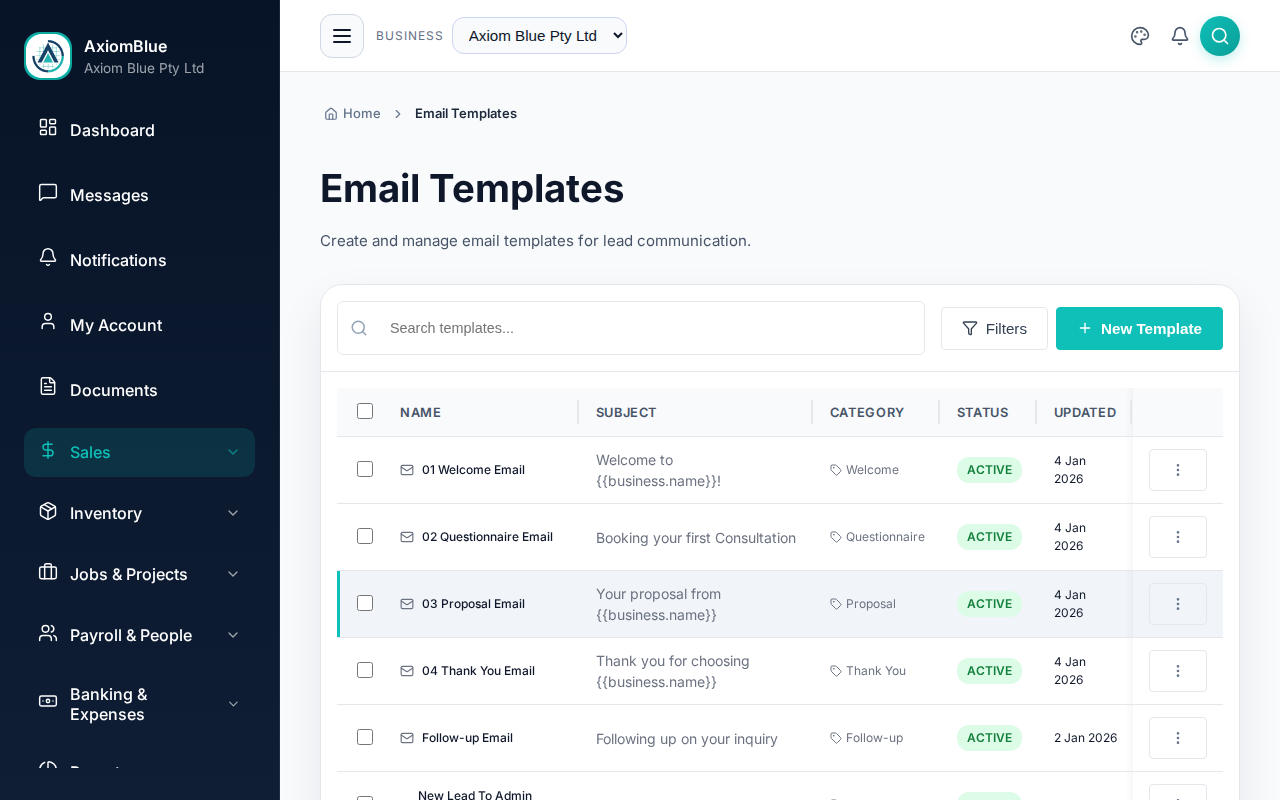
Creating a template
- Select New Template.
- Enter a Template Name. Name it after the moment you send it —
First follow-up call missedbeatsTemplate 3. - Pick a Category: Welcome, Follow-up, Proposal, Quote Email, Thank You, Questionnaire or Other.
- Write the Email Subject. Select Insert Variable beside it to drop a placeholder in.
- Write the Email Body in the editor, using Insert Variable again where you want the lead's details.
- Open the plain-text section and add a plain version if you want one. It is optional.
- Leave Active (available for sending) ticked, then select Create Template.
Variables
A variable is written {{lead.first_name}} and is replaced with that lead's value when the email goes out. These are what the Insert Variable menu offers.
- The lead:
{{lead.first_name}},{{lead.last_name}},{{lead.company_name}},{{lead.email}}. - Your business:
{{business.name}}. - Whoever is sending:
{{user.name}},{{user.email}}. - Questionnaires:
{{questionnaire.url}},{{questionnaire.name}}.
A template in the Quote Email category gets a different set instead. That set covers the quote number, customer name, total, expiry date and approve-or-reject link, your business name, email and phone, and {{custom_message}}. Changing the category changes the menu.
Checking a template before you use it
Select Preview on the row, or open the template from the list, to see it rendered.
Sending with a template
Open a lead, find the Email History card and select Send. Choose your template under Select Template and the subject and body fill in with that lead's details merged. Edit anything you like before sending — the template is a starting point, not a lock.
Only templates marked Active appear in that list.
What you should see
The new template appears in the list with its category, and in the Select Template menu the next time you email a lead.
Tip: retiring a template you no longer want used is better than deleting it. Untick Active and it drops out of the send menu while the emails you already sent keep their history.
Related
- Managing Leads
- Automation Overview — send these templates on a trigger instead of by hand.