Creating a Quote
A quote is the priced proposal you send a customer before work starts. This article covers building one in the quote editor, from choosing the customer through to saving it.
Applies to: every plan. You need the erp:sales:quotes:view permission to open the list and erp:sales:quotes:create to create a quote. On the Freemium plan you can create 10 quotes per calendar month, counted in your business's timezone.
Prerequisites: Managing Customers and Products & Services.
Open the quotes list
Go to Sales > Quotes in the sidebar. The page is headed Quotes & Estimates.
Each row shows Number, Customer, Job Title, Date, Amount and Status. Four figures sit above the list: Drafts, Sent, Accepted and Conversion Rate.
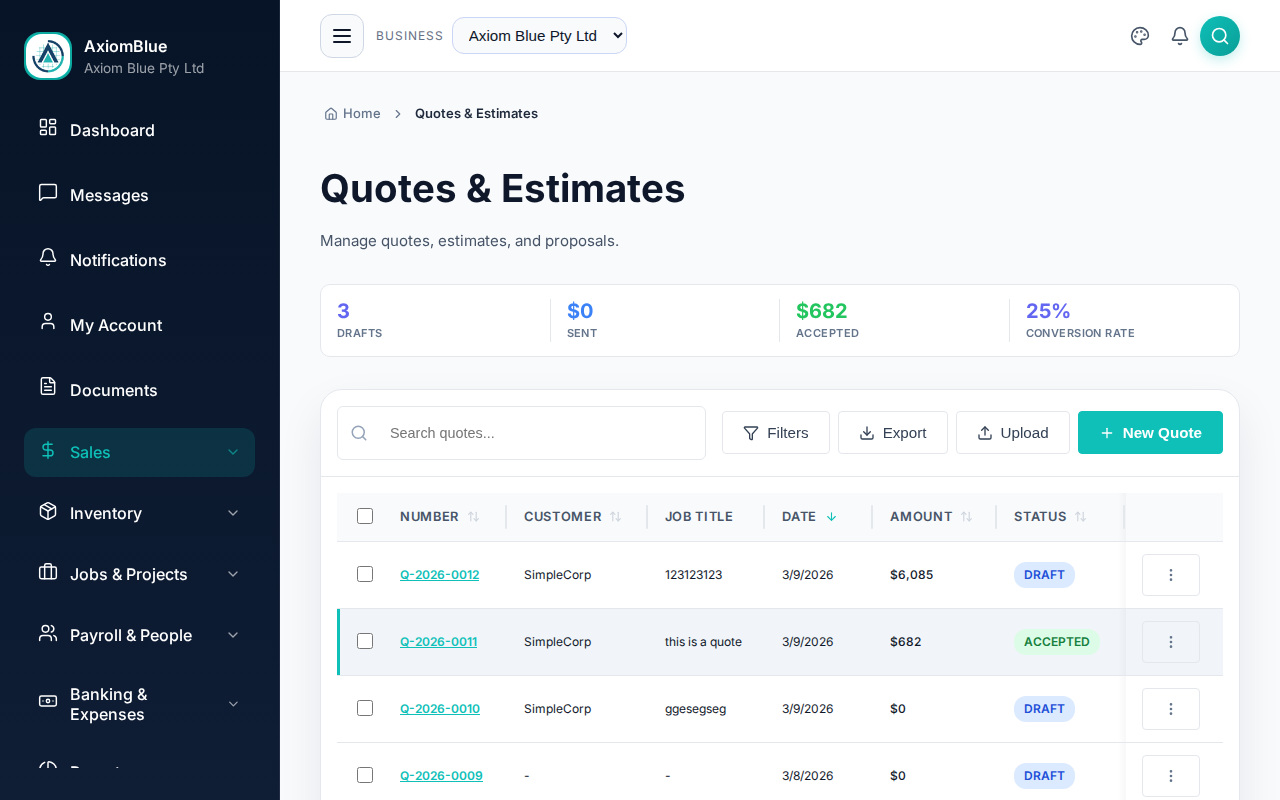
Select New Quote to open an empty quote. The arrow beside that button offers New Quote From Template, which starts you from a saved set of line items instead.
Fill in the quote details
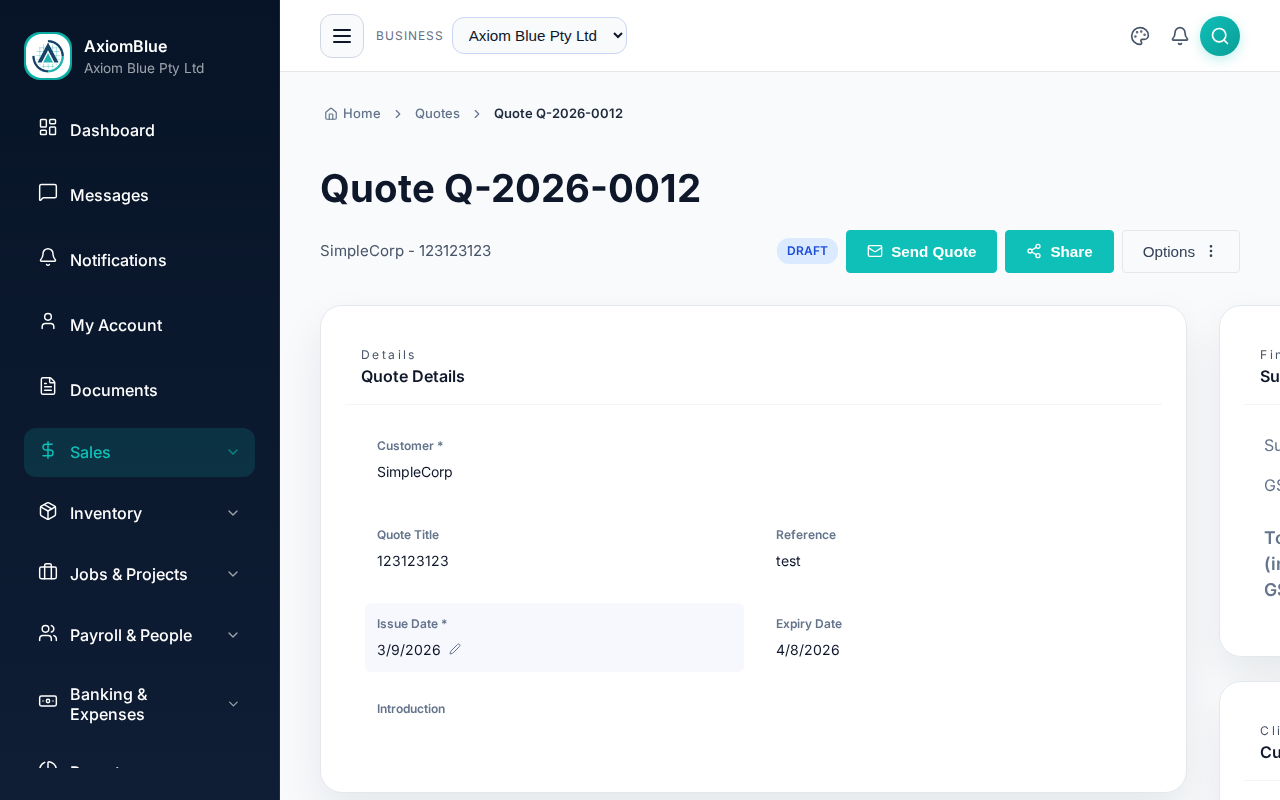
The Quote Details card holds everything that identifies the quote.
- Customer — required. Choose an existing customer, or add one without leaving the page.
- Quote Title — a short description of the work, such as
Kitchen rewire — 42 Smith St. - Reference — your own reference number, if you use one.
- Introduction — the opening paragraph that appears at the top of the quote.
- Issue Date — required. It defaults to today.
- Expiry Date — the date the quote lapses. A daily automation can close expired quotes for you.
Add line items
Each line is one thing you are charging for. Select Add Line Item in the Line Items card, then fill in the fields.
- Description — what you are charging for.
- Quantity — how many units.
- Unit Price — the price per unit. Pulling an item from Products & Services fills this in for you.
- Discount — a percentage off this line. Leave it blank for none.
- Tax — the GST treatment, chosen from your business's tax codes. GST is the 10% Goods and Services Tax.
The Amount column updates as you type. The arrow beside Add Line Item holds three other ways to build the quote.
- Add Inventory — pick several items from Products & Services at once.
- Add Assembly — insert a saved bundle of lines, such as a standard switchboard upgrade.
- Add Section — group lines under a heading, which is how you quote room by room.
- Calculator — work out material quantities for paint, decorating and similar trades.
Add terms and notes
The Terms & Conditions card holds the terms printed on the quote. The Notes card in the sidebar is for your own team.
Check the totals
The Summary card in the sidebar shows three figures.
- Subtotal — the lines added up before tax.
- GST — the tax calculated from each line's tax code.
- Total (inc. GST) — what the customer pays.
Save the quote
Select Save Quote in the page header. Discard throws the draft away.
Once a quote exists, the editor saves your changes as you make them — there is no second save step. You can keep editing while the quote is in Draft or Declined.
What you should see
The header changes from New Quote to Quote followed by the quote number, and the status badge reads Draft. The quote now appears in the list at Sales > Quotes.
Tip: If you quote the same work repeatedly, save it once as a template. See Quote Templates.
Next: Sending & Managing Quotes.