Products & Services
Products & Services is your catalogue: the materials, parts, labour and call-out fees you drop onto quotes, jobs and invoices. Set an item up once and it carries its own price, unit and stock level everywhere you use it.
Applies to: anyone with the erp:inventory:items:view permission. Adding items needs erp:inventory:items:create, and changing a stock level needs erp:inventory:items:adjust.
Where the catalogue lives
Go to Inventory > Products & Services. The page has three tabs: Items, Transactions and Stock Takes.
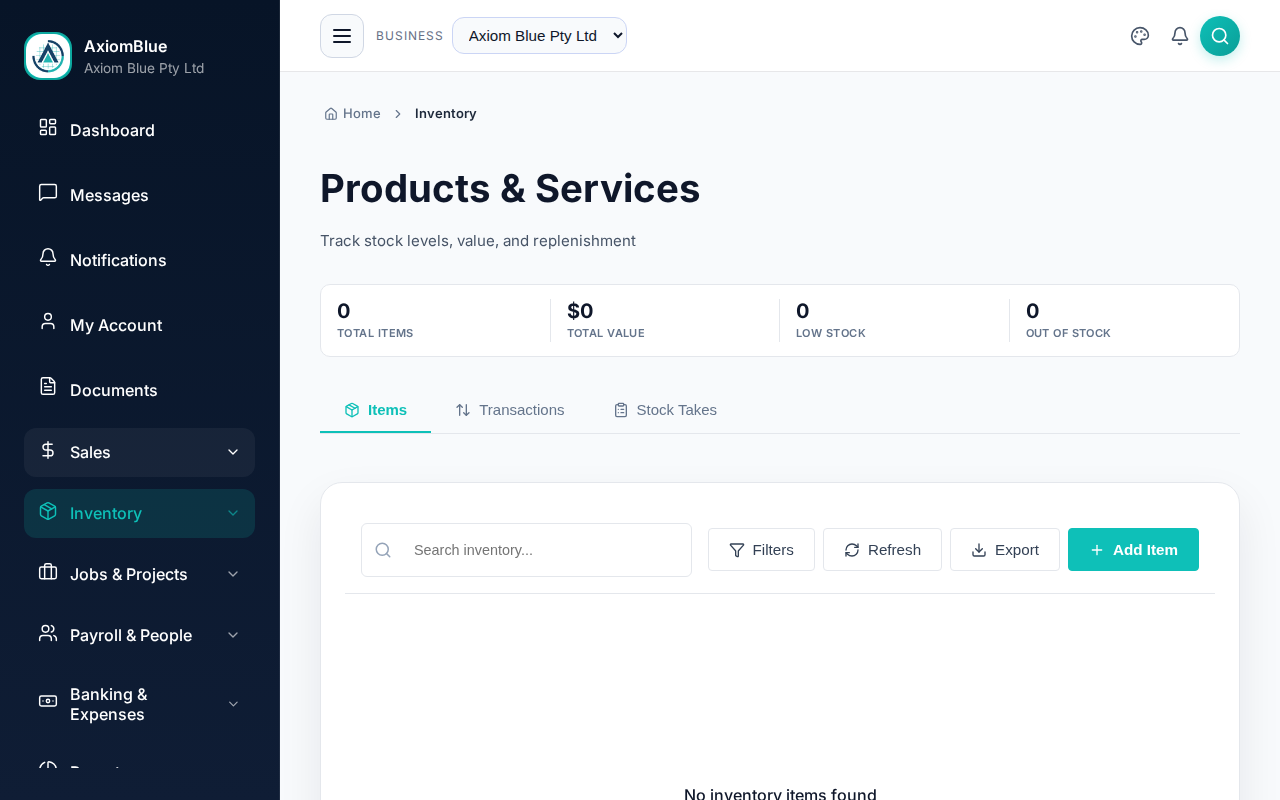
Above the tabs sit four figures: Total Items, Total Value, Low Stock and Out of Stock. Selecting Low Stock or Out of Stock filters the list to exactly those items.
The Items tab
Each row shows SKU, Item Name, Category, On Hand, Cost, Sell, Value and Status. To find something:
- Search by name or SKU.
- Select Filters to narrow by status (In Stock, Low Stock, Out of Stock) or by type.
- Select Options > Export CSV to download the list, or Options > Import CSV to bring in a price book from a spreadsheet.
Add an item
Select Add Item. SKU, Name, Cost Price and Sell Price are required.
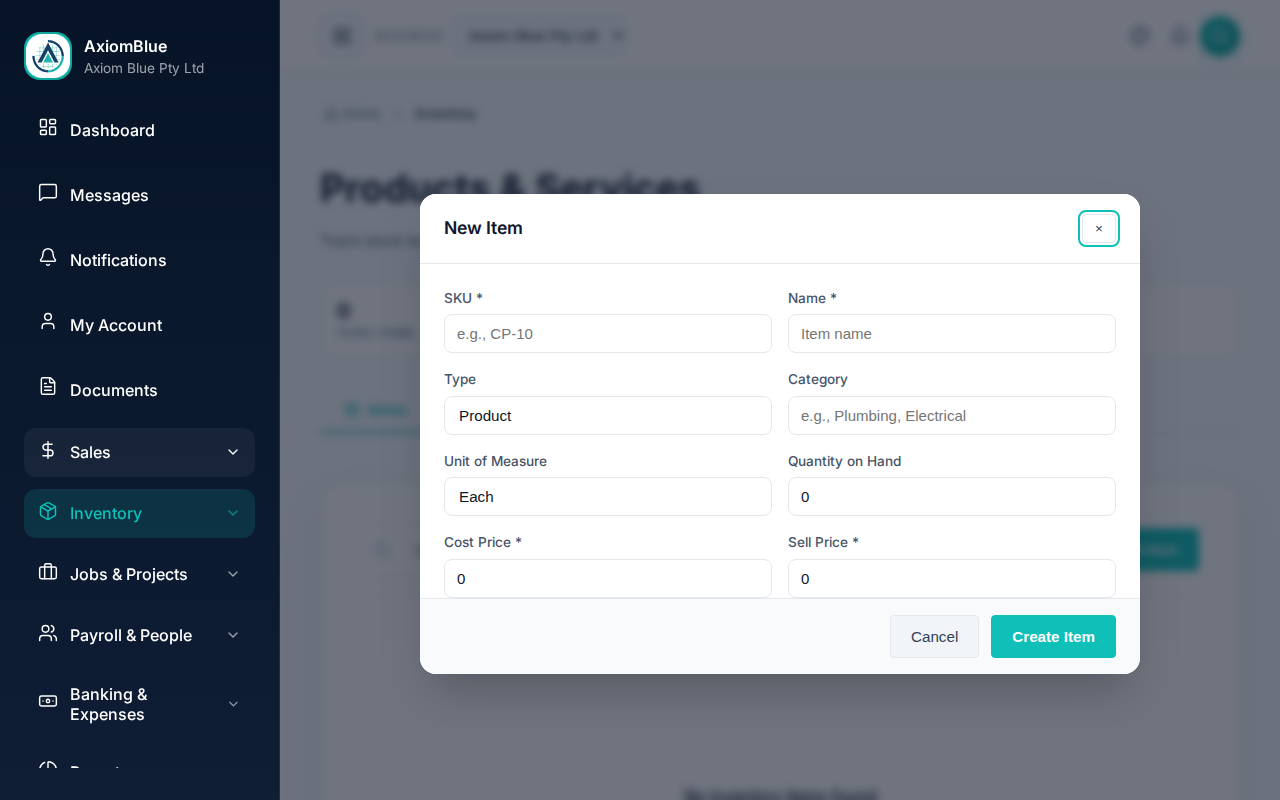
- Enter the SKU — a short code unique to this item, for example
CP-10. - Enter the Name — what appears on the quote or invoice line.
- Choose the Type — Product, Service, Material or Consumable.
- Check Inventory Tracking — the type sets this for you, and you can override it. Services never track stock.
- Set the Category — for example
PlumbingorElectrical. Categories you have used before are offered as you type. - Choose the Unit of Measure — Each, Pack, Box, Metre, Kg, Litre or Hour.
- Enter the Cost Price — what the item costs you.
- Enter the Sell Price — what you charge for it.
- Add a Description if the name alone is not enough on a customer document.
- Select Create Item.
Stock fields
Three more fields appear when inventory tracking is on:
- Quantity on Hand — how many you have right now.
- Reorder Point — the quantity at which the item counts as low stock.
- Reorder Qty — how many you would order when it gets there.
What you should see
The item appears in the Items tab with a stock status, and it becomes selectable on quote, job and invoice lines.
Tools and vehicles do not belong here. A mower, ute or ladder your business owns goes in Inventory > Assets, which handles check-out and check-in, custody and service history. Products & Services is for what you sell or consume.
Products versus services
An item's Type sets the default, and the Inventory Tracking tick box decides what actually happens:
- Product and Material — stock tracking on by default. They carry a quantity, a reorder point and a stock status, and appear in stock takes.
- Service — stock tracking off, and it cannot be turned on. A service is a priced line item and nothing more.
- Consumable — tracking off by default. Turn it on for anything you want to count.
The item page
Select an item to open its page, which shows:
- Item Details — SKU, type, category, unit, stock status and description.
- Stock & Pricing — cost price, sell price, reorder point, reorder quantity, auto-reorder and when it was last updated.
- Transaction History — every movement in and out, filterable by transaction type.
Adjust a stock level
Select Adjust Stock from an item's row menu when the count on the shelf and the count on screen disagree. Every adjustment lands in the Transactions tab, so the change stays explainable later.
Each one takes a reason:
- Manual Adjustment.
- Damaged / Spoilage.
- Shrinkage / Loss.
- Found / Surplus.
- Correction / Data Entry Error.
- Customer Return.
- Write Off.
For a full recount, open the Stock Takes tab and select Start Stock Take. Enter a Counted Qty against each item's Expected Qty — each entry saves as you type and shows the Variance — then select Complete Stock Take to apply the differences.
Tip: Start with the twenty or so items you quote most often. You can add the rest as they come up, and each one is available on the next quote you write.
What's next
Your business setup is done — business settings, users, customers, suppliers, employees, crews, skills and your catalogue. Next, create your first quote.