Managing Leads
A lead is someone who has shown interest in your work but is not yet a customer. This article covers finding leads, adding one, logging what happened, and emailing them from their record.
Applies to: all plans. Viewing needs crm:leads:view, adding and editing need crm:leads:create and crm:leads:edit, and deleting needs crm:leads:delete. Buttons you lack the permission for are hidden rather than disabled.
Prerequisites: Navigating the Portal
Finding a lead
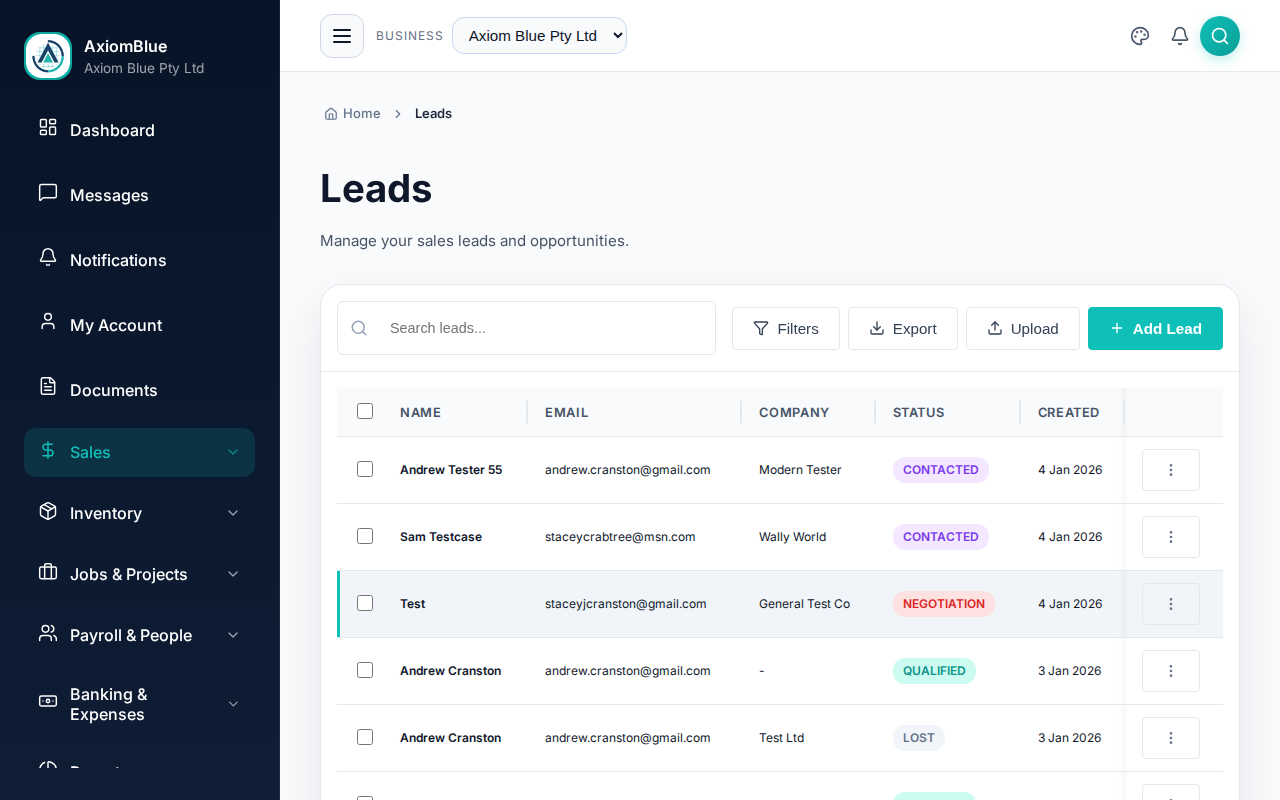
Go to Sales > All Leads. The list shows Name, Email, Company, Status and Created, plus any custom fields your business has set to appear in lists.
Above the list you have:
- Search leads — matches name, company and contact details.
- Filters — Status, Source, Assigned To, Created From and Created To. Clear Filters resets them.
- Options > Export CSV — downloads a CSV named
leads-export.csv. The Status and Source filters carry across to the file; the search box and the other filters do not.
Adding a lead
- Select Add Lead.
- Fill in First Name — the only required field — then Last Name, Email and Phone.
- Add the Company and Job Title if you are selling to a business.
- Choose a Source — Website Form, Landing Page, Referral, Phone Inquiry, Email Inquiry, Social Media, Advertisement, Event, Partner or Other. Use Source Detail for the campaign or referrer name.
- Set the Status and an Estimated Value so the lead counts towards your pipeline total.
- Fill in the Address, City, State and Postcode if you will be quoting on site.
- Add Notes, then pick someone under Assign To.
- Select Create Lead, or Save & Add Another to keep the form open for the next one.
Setting the status to Lost adds a Lost Reason box. Fill it in — it is what makes the loss reporting on CRM Reports worth reading.
The lead record
Select a lead to open it. The main column holds:
- Lead Details — name, email, phone, company, estimated value, source and status. Select a value to edit it in place, then Save Changes.
- Address.
- Notes — free-text notes, newest first.
- Activity Timeline — everything logged against the lead.
- Tasks — follow-ups with a due date and an owner.
- Email History — every email sent from this record.
The side column shows Contact Info, a Lead Summary with the estimated value, source and owner, and the questionnaire responses widget. A lead that arrived through a lead capture form also gets a Form submission card holding the customer's answers and attachments.
Logging what happened
- Select Log Activity in the page header.
- Choose the type: Note, Call Made, Call Received, Email Sent or Meeting.
- Enter a Title. This is the line that shows in the timeline, so make it specific.
- Add Details, and a Date and Time if the activity was not just now.
- Save. The entry appears at the top of the Activity Timeline.
Emailing a lead
Find the Email History card on the lead and select Send. You can pick a saved email template, which fills in the subject and body with the lead's details merged in, or write the email yourself. The sent message is recorded on the card.
The Send button only appears once the lead has an email address.
Working on several leads at once
Tick the checkboxes in the list to select leads, then use:
- Export Selected — a CSV of just those leads.
- Delete — needs
crm:leads:delete, and asks you to confirm.
Deleting a lead removes its notes, activities and email history with it. To take a lead off the board without losing the record, move it to a Lost stage instead — see Sales Pipeline.
What you should see
A new lead appears at the top of All Leads and as a card in its stage on the Lead Pipeline board.
Related
- Converting Leads to Customers
- Lead Capture Forms — collect leads from your website automatically.