Log in and set up your business
Sign in to AxiomBlue, get past a two-factor prompt, or reset a forgotten password. This article also covers the short setup wizard you meet the first time you arrive without a business.
Before you start: you need an AxiomBlue account. Either sign yourself up, or ask your administrator to invite you from Settings > Business Settings.
Sign in
Go to www.axiomblue.com.au/login. Going straight to the portal works too — it redirects you to the same page.
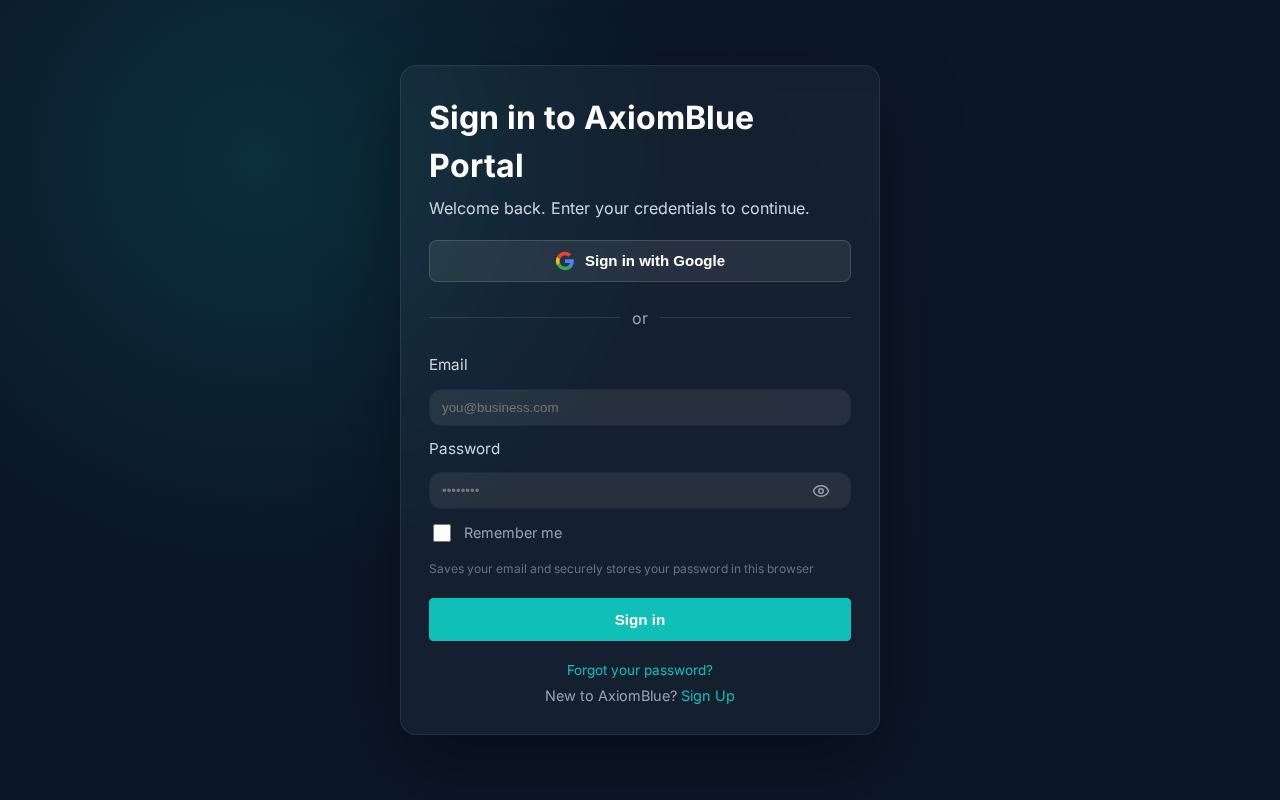
- Enter your Email — the address your account was created against.
- Enter your Password — select Show beside the field to check what you typed.
- Select Log In.
You land on your dashboard. If your account belongs to more than one business, AxiomBlue opens the one set as your default — see My Account & Profile.
Sign in with Google or Apple
Instead of the email form, select Continue with Google or Sign in with Apple. Use the same provider each time — swapping between a password and a provider mid-way can strand you on a second account.
If you have two-factor authentication switched on
After your password, AxiomBlue shows a Two-factor authentication step.
- Enter the 6-digit Authenticator code from your authenticator app.
- Select Verify.
Lost your phone? Select Use a backup code instead and enter one of the 8-character backup codes you saved when you turned 2FA on. Each backup code works once.
Reset a forgotten password
- On the login page, select Forgot your password?
- Enter your email address and submit the form.
- Open the reset link in the email AxiomBlue sends you, then set a new password.
Applies to: every plan and every user. Signing in needs no permission. What you can reach after signing in depends on your plan and your permissions — see Understanding Roles & Permissions.
First-time setup
Sign in without belonging to a business and AxiomBlue opens a two-step setup wizard. It creates your business for you — there is no long form to fill in.
Step 1 — Which services does your business offer?
Tick every trade your business works in, then select Continue. Your selection switches on the matching tools: refrigerant logs for air conditioning, compliance certificates and test & tag for electrical, colour schedules for painting. Leaving everything unticked keeps the general feature set.
Step 2 — How would you like to start?
Choose one of two cards:
- Populate with sample data — adds example customers, employees, jobs, quotes and invoices so you can look around a working portal. You can delete it later.
- Start empty — a clean business you fill with your own records.
Either card creates the business and takes you to your dashboard, with the guided tour ready to run.
What you should see
Your dashboard, with a Getting started checklist in the right-hand column tracking the setup steps that remain. See Understanding Your Dashboard.
Joining a team that already uses AxiomBlue? On step 1 of the wizard, select Request access instead and name the business. The owner approves your request from the Access Requests page in Settings, and you skip business creation entirely.
Your business is named for you. The wizard creates it under a placeholder name and a default trading configuration. Rename it, add your ABN (Australian Business Number) and set your GST position in Settings > Business Settings — see Setting Up Your Business.