Managing Customers
Customers link to quotes, jobs and invoices, so the details you enter here follow the work all the way through to getting paid. Setting up a record properly at the start saves correcting documents later.
Applies to: all plans. Viewing needs erp:finance:customers:view; the Add Customer button appears only with erp:finance:customers:create, and bulk delete only with erp:finance:customers:delete.
Prerequisites: Navigating the Portal.
View your customers
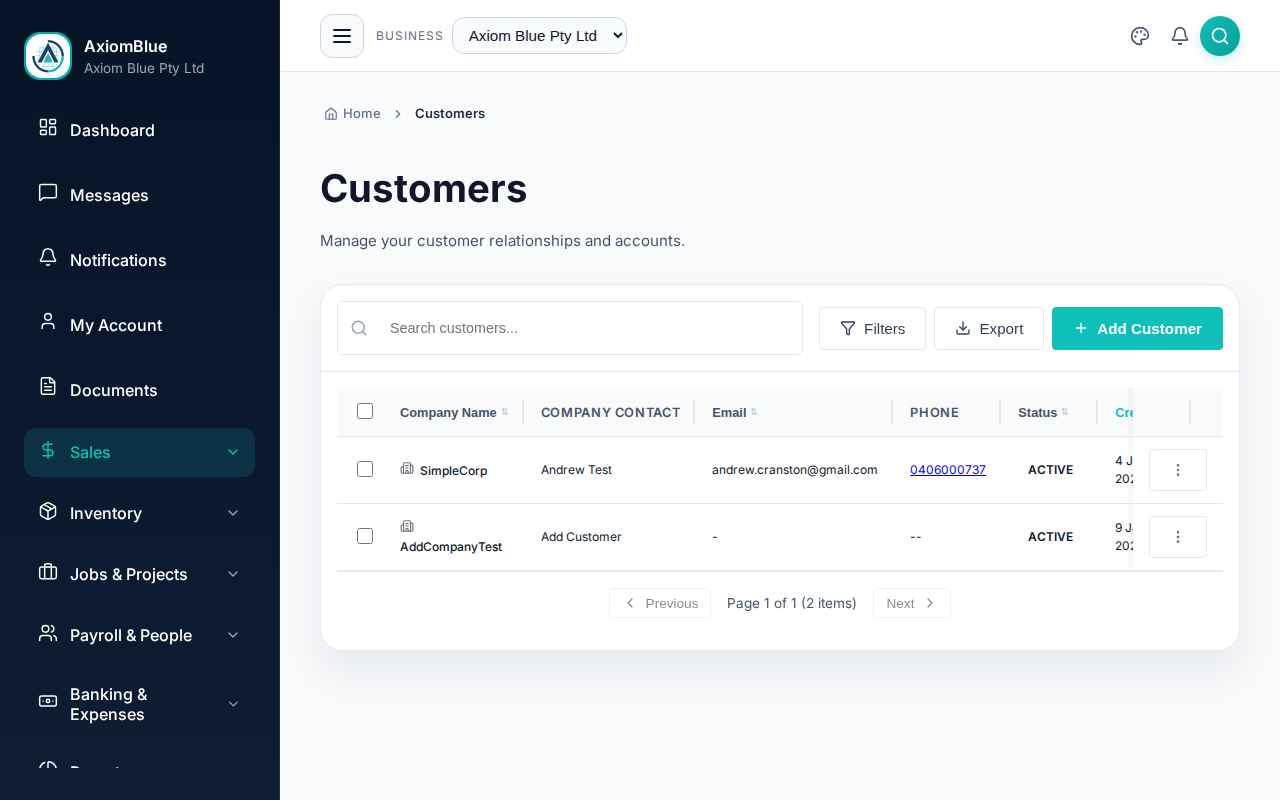
Go to Sales > Customers. The list shows Number, Company Name, Email, Status and Created, and you can sort on any of them.
Search matches name, email, phone and customer number. Select Filters to narrow by Status (Active or Inactive) and by a Created From / Created To date range. Options > Export CSV downloads the current list, and Options > Import CSV adds or updates customers from a spreadsheet (see importing data).
The Customer Number
Every customer gets a Customer Number — CUST-0001, CUST-0002 and so on. AxiomBlue assigns it when the record is created, and the Customer Number field on the Add Customer form reads Assigned automatically while you leave it blank.
Type your own number instead if you are carrying numbers over from another system. It has to be unique within your business: reuse one and the save is refused, naming the customer already holding it.
Add a customer
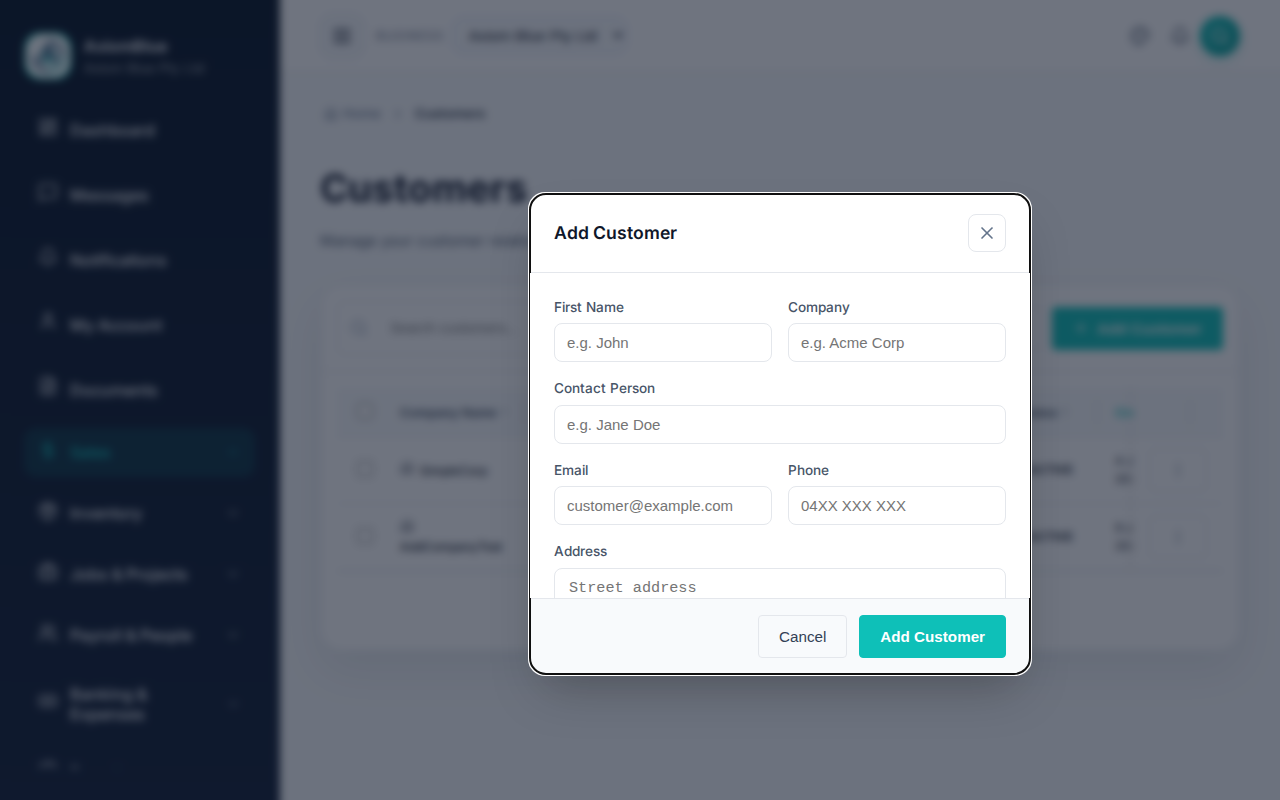
- Select Add Customer.
- Customer Number — leave blank to have one assigned.
- Enter a First Name, a Company, or both. One of the two is required.
- Add the Contact Person when the day-to-day contact differs from the name above.
- Enter Email and Phone. The email is where quotes and invoices go, and it is what lets them use the customer portal.
- Start typing into Address and pick a match from the lookup, which fills City, State, Postcode and Country.
- Select Add Customer.
Two customers can share an email address
Email is not a unique key in AxiomBlue. A property manager with six sites, or a couple who each ring you about the same house, can hold separate records under one address.
Enter an address already on file and the form pauses rather than saving. It lists the existing records — name and customer number — so you can tell whether you are about to duplicate someone. Select Add anyway to go ahead, or change the email address.
A customer portal sign-in link covers every record that email address holds. Switching portal sign-in off for one record does not block the others. The customer's Settings tab warns you and links to the records that share the address.
The customer record
Select a customer to open their record. A row of tabs sits under the customer's name: Overview, Jobs, Invoices, Reports and Settings.
You see only the tabs your permissions open:
- Jobs —
erp:operations:jobs:view. - Invoices —
erp:finance:ar:view. - Reports —
erp:finance:customers:vieworerp:finance:reports:view. - Settings — edit access to customers, jobs or quotes,
erp:finance:customers:delete, orerp:business-rules:view.
Overview
Fields edit in place: select a value, change it, and it saves a moment later.
- Customer Details — Customer Number, Company Name, Contact Person, Email, Phone, Website and ABN (Australian Business Number).
- Billing Address, and Shipping Address with a Same as billing address tickbox. Untick it to enter a separate delivery address.
- Financial Summary — Current Balance, Total Invoiced, Total Paid, Payment Terms, and Credit Limit where one is set.
- Notes — internal notes, with a count in the heading.
Current Balance counts only invoices that have been issued and are still owing. Drafts, and invoices that were voided or written off, are left out.
Jobs
Every job raised for the customer, cancelled ones included, newest first. Type three or more characters to search, or narrow the list with the status filter. Select a job to open it.
New Job opens the New Job form with this customer already selected. The Cost column appears only with erp:operations:jobs:financials, and shows the actual cost, or the estimate marked "est." until there is one.
Invoices
Every invoice for the customer, newest first, with its total and remaining balance. An unpaid invoice past its due date shows how many days overdue it is. The filter narrows by status, and has two further choices:
- Overdue — issued invoices still owing after their due date.
- Archived — invoices you have archived, which every other choice hides.
New Invoice starts an invoice with this customer filled in. See Creating Invoices.
Reports
Reports shows what the customer owes and how reliably they pay. Pick a date in As of to see the balance as it stood on that day.
- Figures across the top: Outstanding, Overdue, Total Invoiced, Total Paid, Median Days to Pay and Paid On Time.
- Aged Balance — what is owing, split into current, 1–30, 31–60, 61–90 and 90+ days past the due date.
- Payment Behaviour — payments recorded, median and slowest time to pay, and the share paid by the due date. Time to pay runs from an invoice's issue date to each payment against it.
- Invoiced vs Received — the amount invoiced and the amount received in each of the twelve months up to the as-of date.
- Open Invoices — each unpaid invoice at the as-of date, with its days overdue and age.
- Unbilled Work — completed jobs not yet invoiced, with their billable time and materials. It needs
erp:finance:ar:vieworerp:operations:jobs:view.
Download statement saves a PDF statement for the same as-of date, listing the open invoices and aged balance the tab shows.
Settings
Each setting saves the moment you change it:
- Billing — Payment terms.
- Billing Rules — this customer's own billing rules. Seeing them needs
erp:business-rules:view; changing them needserp:business-rules:createanderp:business-rules:edit. - Customer Portal — the Portal sign-in tickbox and Send sign-in link.
- Status — Mark as inactive, or Reactivate for an inactive customer.
- Delete Customer — shown only with
erp:finance:customers:delete.
Payment terms
Payment terms, on the customer's Settings tab, sets the default due date on this customer's invoices. The options are Due on Receipt, Net 7, Net 14, Net 30, Net 60 and Net 90. "Net 30" means the invoice falls due thirty days after it is issued. A customer brought in from another system with other terms, such as Net 45, keeps them as a choice.
Billing rules for one customer
A customer on different terms — a negotiated hourly rate, a lower minimum charge, their own rounding — can have their own billing rules. They apply to every job for that customer.
- Open the customer and select the Settings tab.
- In Billing Rules, switch on the rule you want to change and set its values — each change saves as you leave the field.
A rule you leave switched off keeps using the business rule, and says which one. Rules apply most specific first: the project's own rules, then the customer's, then the business's.
Invite a customer to the customer portal
The customer portal is a separate site where your customers see their jobs, respond to quotes and pay invoices.
- Open the customer and select the Settings tab.
- Check Portal sign-in is ticked — while it is switched off, the customer cannot sign in and the button stays unavailable.
- Select Send sign-in link — the tab confirms the address the link went to.
With no email address on the record, the tab says so instead. Add one on the Overview tab and the button appears.
The portal is also where a customer authorises automatic payment for a job series, and where they can turn it off again. Both need Portal sign-in ticked. See Billing a Job Series Automatically.
Deactivate or delete a customer
On the Settings tab, select Mark as inactive and confirm. The customer keeps their jobs, invoices and history, and shows as Inactive in the customer list. Reactivate reverses it.
Delete customer removes the record permanently, and only works for a customer with no jobs or invoices. For any other customer the delete is refused, and the tab tells you to deactivate them instead.
What you should see
A saved customer appears in the list with its customer number and an Active status badge. Opening it shows the Overview, Jobs, Invoices, Reports and Settings tabs your permissions allow. You can now select the customer on a quote, a job or an invoice.
Tip: use Quick View from the row's action menu to check a customer's details without leaving the list. View Full Details opens the whole record.
Turning an enquiry into a customer instead? See Converting Leads to Customers.