Managing Suppliers
Suppliers are the businesses you buy from. A supplier record holds their contact details, payment terms and bank details, and gives every bill you enter somewhere to hang.
Applies to: anyone with the erp:finance:suppliers:view permission. Adding a supplier needs erp:finance:suppliers:create, and deleting one needs erp:finance:suppliers:delete — without those, the buttons do not appear.
Prerequisites: Navigating the Portal
Where suppliers live
Go to Inventory > Suppliers. Suppliers sit inside the Inventory section of the sidebar, alongside Products & Services and Assets. There is no separate Purchasing section.
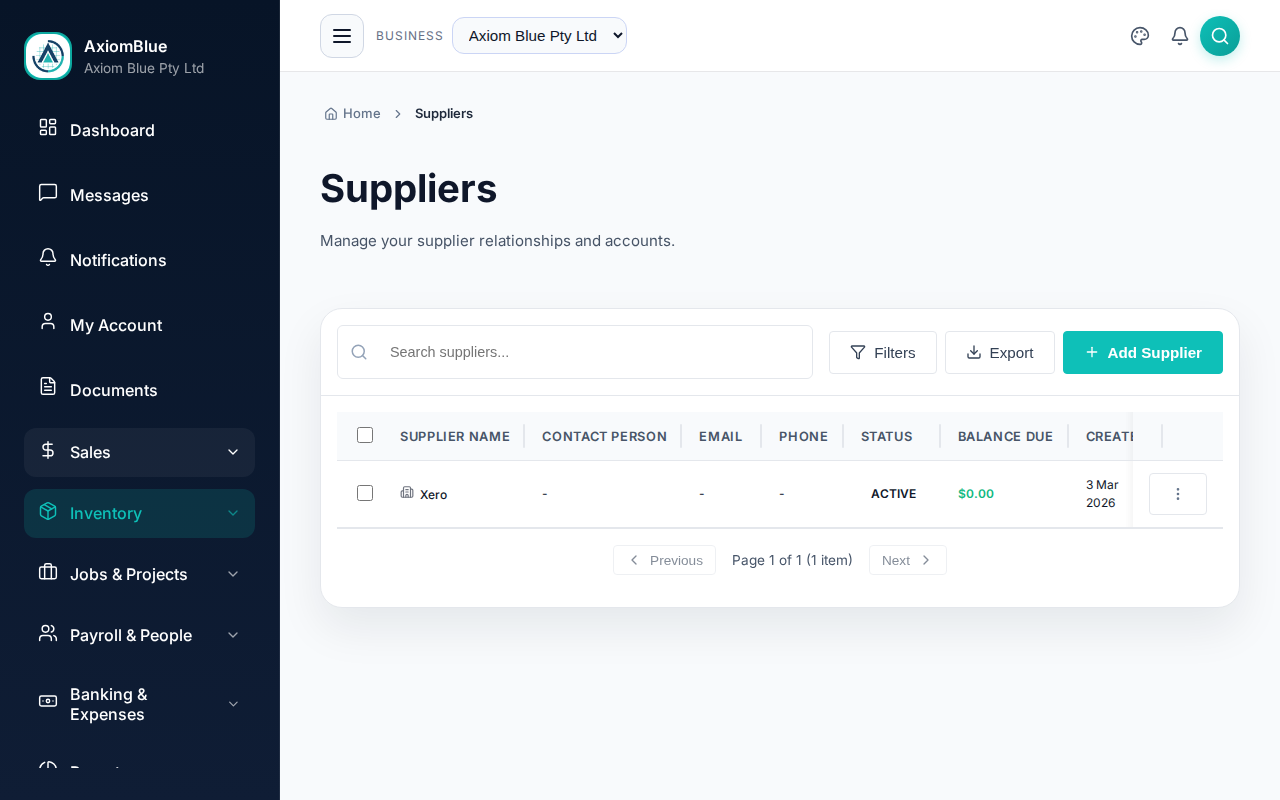
Read the list
Four figures sit above the list: Total Suppliers, Active Suppliers, Total Outstanding and Overdue Bills.
Each row shows Supplier Name, Contact Person, Email, Phone, Status, Balance Due and Created. To narrow the list:
- Type in the search box to match on name.
- Select Filters for Status, Balance, Created From and Created To.
- Select Options > Export CSV to download the filtered list as a CSV file.
- Select Options > Import CSV to add or update suppliers from a CSV file. See Import customers, suppliers, price book items and jobs from a spreadsheet.
Add a supplier
Select Add Supplier and fill in the form. Only Supplier Name is required.
- Enter the supplier name — this is what appears on bills and in the list.
- Add contact details — Contact Person, Email, Phone and Website.
- Enter the ABN — the 11-digit Australian Business Number. ACN is separate and optional.
- Set the Currency and Payment Terms (days) — the terms you have agreed with this supplier, for example
30. - Fill in the address — Address Line 1 and Address Line 2, City, State, Postcode and Country.
- Expand Bank Details (Optional) — Bank Account Name, BSB and Account Number, if you pay them by transfer.
- Add Notes and leave Active Supplier ticked.
- Select Add Supplier to save.
What you should see
AxiomBlue saves the record and opens the supplier's own page.
The supplier page
Edit any field by selecting it in place. Each page holds these cards.
- Supplier Details — name, contact person, ABN, ACN, email, phone, website, currency and payment terms.
- Address.
- Bank Details — account name, BSB and account number.
- Notes.
- Recent Bills — the bills you have entered against this supplier.
- Financial Overview — Total Billed, Total Paid and Balance Due.
Edited fields turn into a Save Changes button at the top of the page. The Options menu carries Deactivate Supplier and Delete Supplier.
Tip: Deactivate a supplier you have stopped using rather than deleting them. Deactivating keeps their bill history; deleting cannot be undone.
Suppliers and Xero
When the Xero integration is connected and supplier syncing is switched on for the business, AxiomBlue matches suppliers to Xero contacts on its own schedule. The supplier's name, contact person, email, phone, address, website and ABN travel across; the ABN becomes the contact's tax number in Xero.
There is no per-supplier sync button. Syncing runs in the background for every supplier at once.