The Visual Automation Editor
The workflow editor is a canvas where you place nodes, join them with arrows, and configure each one. This article walks through the four parts of the editor and how to save, test and activate what you build.
Applies to: Professional plan. Requires the crm:automations:view permission. A trial or demo business can build, save and test a workflow but cannot set it to Active.
Prerequisites: Automation Overview. If a step will send a saved template, set that up first in Email Templates.
Opening the editor
From Workflows > All Workflows, select a row to edit an existing workflow, or select New Automation to start a blank one.
The toolbar
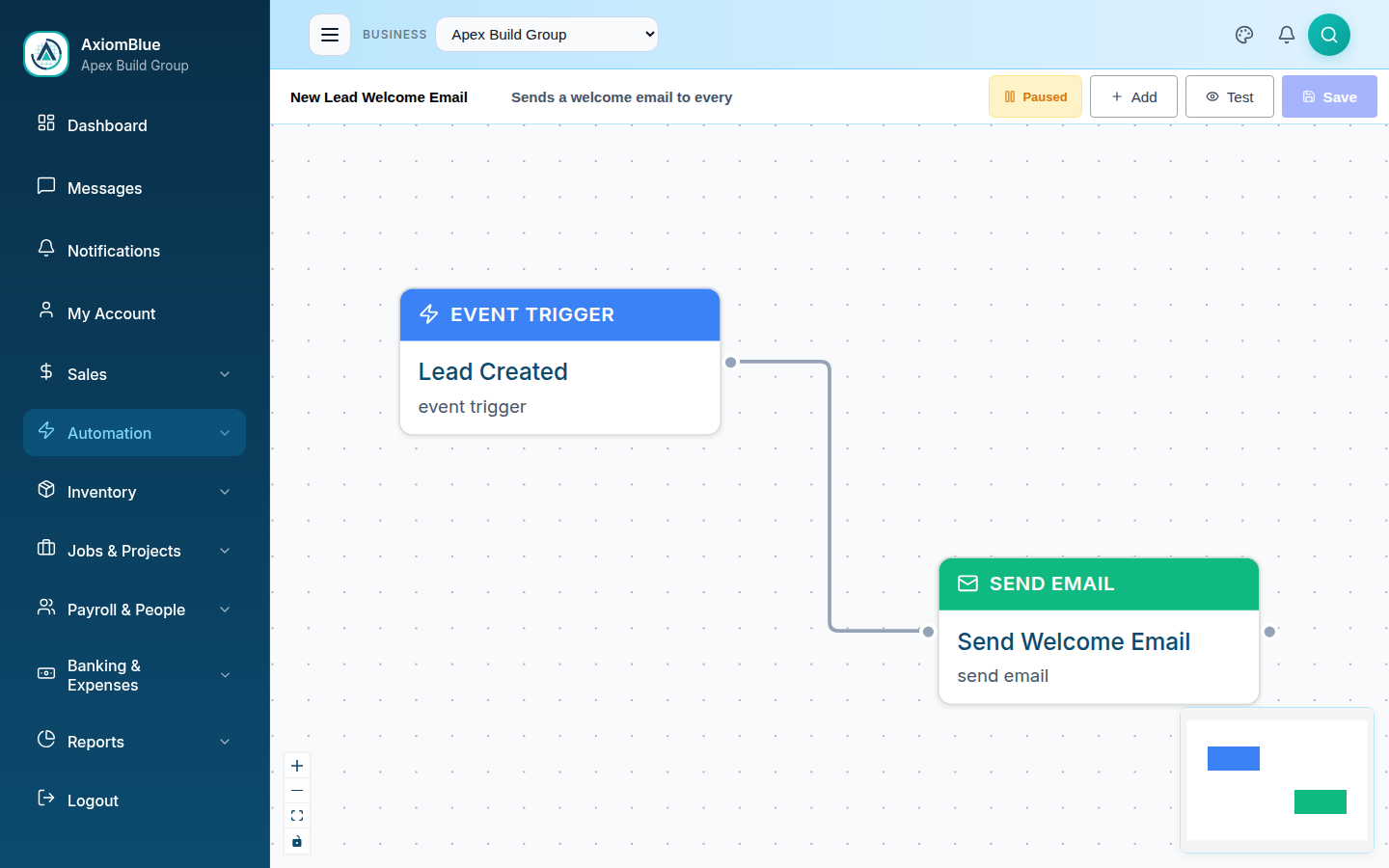
Two text boxes at the top left hold the workflow's name and an optional description. The buttons on the right are:
- Active / Paused — a status button that flips the workflow's state. It stays paused until you save.
- Add — opens the node toolbox as a floating panel
- History — past runs of this workflow, with their status and any error. Stays disabled until the workflow has been saved once.
- Test — steps through the flow against real data without sending anything. Select Stop to end the run early.
- Save — stays disabled until you change something
The node toolbox
The toolbox is a dock on the left with a search box at the top. Its sections are collapsed until you open one:
- Triggers — Event Trigger, Schedule, Webhook
- One section per business area — Jobs, Timesheets, Assignments, Notifications, Customers, Invoicing & Quotes, Bills & Purchasing, Inventory, Employees, Projects, Leads & Tasks, Scheduling
- Find & Look Up — the nodes that fetch records for a scheduled workflow to act on
- Logic & Flow — Branch, Filter, Switch, Delay
- Advanced — Send Email, Send SMS, Notification (advanced), In-App Message, Fire Webhook, Modify Entity (raw), AQL Query (raw), Transform
Select an item to drop it on the canvas. Typing in the search box filters every section at once, which is faster than remembering which area a node lives in.
Connecting nodes
Each node has handles: an input on its left edge and one or more outputs on its right. Drag from an output handle to the next node's input handle to join them. A node's outputs depend on what kind of node it is:
- Condition nodes have yes and no outputs — records that match take the yes path.
- Action nodes have next and error outputs, so you can route a failure somewhere useful instead of the flow stopping silently.
- Lookup nodes have next and empty outputs — empty runs when the search found nothing.
- Switch has one output per case you add, plus a default.
Configuring a node
Select a node to open its configuration panel on the right. Drag the panel's left edge to widen it. Every node has a Label field at the top — this is the name shown on the canvas, so a descriptive label makes a long flow readable.
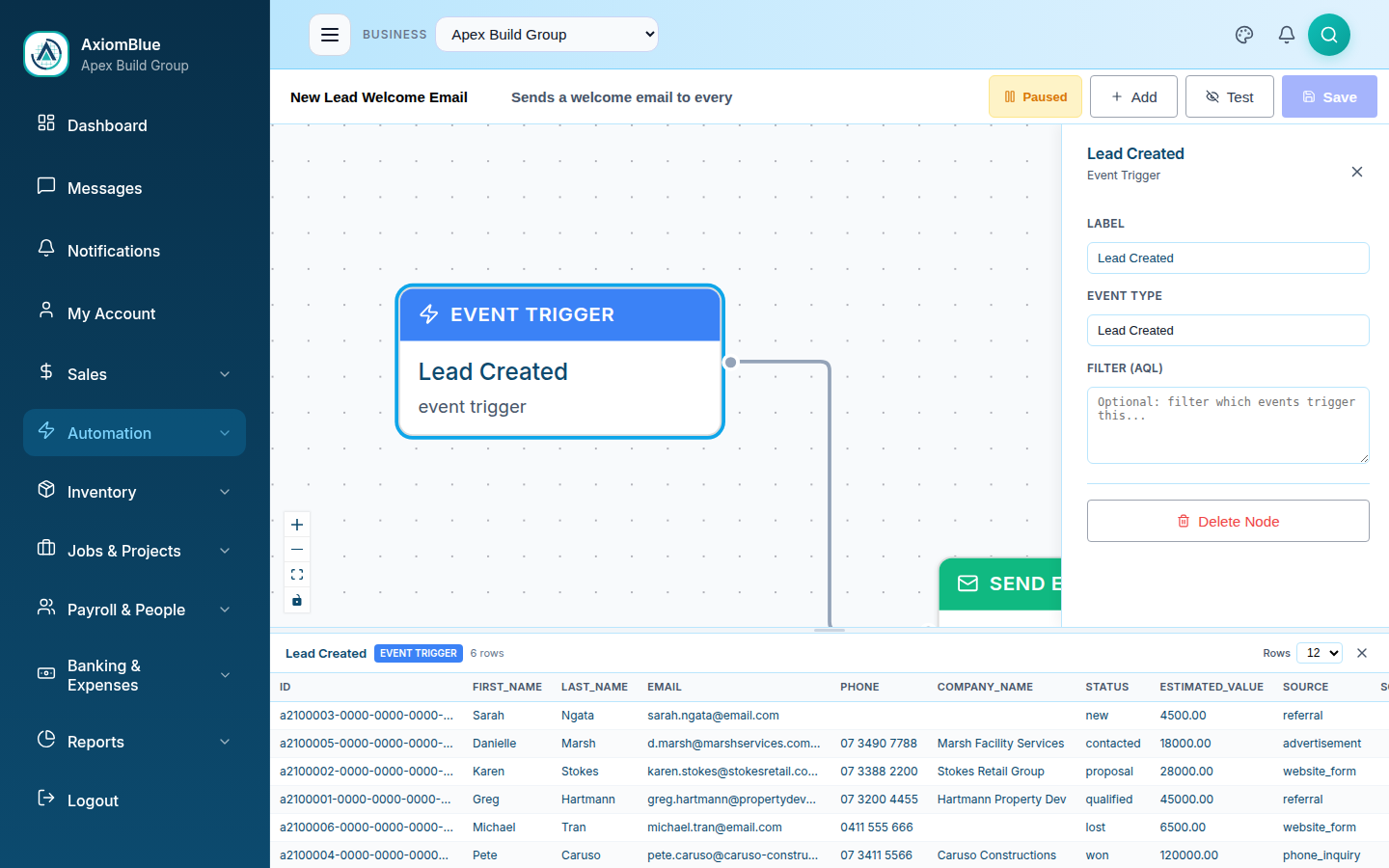
The rest of the panel changes with the node type. Four you will meet early:
Event Trigger
Pick the business event in Event Type — Job Completed, Invoice Overdue, Quote Accepted and around two dozen others. Filter (AQL) optionally narrows which of those events start the flow; Open Visual Editor builds the filter for you rather than typing the query.
Schedule
Set a Cron Expression and a Timezone. The placeholder shows the format: 0 9 * * 1 runs at 9am each Monday. Timezones cover the Australian states, New Zealand and UTC.
Delay
Choose Fixed and set a value plus a unit of minutes, hours, days or weeks. Choose Until Time and give a time of day, such as 09:00, to hold the record until then.
Send Email
Set Recipient Type to Context to use a field from the triggering record, Fixed for one address you type, or AQL to select recipients with a query. Then choose Email Content: Write message for a subject and body typed here, or Use saved template to pick from your Email Templates and optionally override the subject. An inline body can be plain text or HTML.
Variables
Text fields accept variables in double braces, which are filled in when the step runs. What is available depends on the trigger and on the nodes upstream:
{{trigger.data.field}}— fields from the record that started the flow, such as{{trigger.data.job_id}}or{{trigger.data.customer_email}}. The exact list changes with the event type.{{business.name}},{{business.abn}},{{business.email}},{{business.phone}}— your own business details. ABN is your Australian Business Number.{{today}},{{now}},{{user.id}},{{user.email}}— always available.{{nodes.id.rows[0].column}}— a value from an earlier query node's results.
The value picker in the visual query editor lists the variables available at whichever node you are configuring, so you do not have to guess a field name.
The data preview
Selecting a node also opens a preview panel along the bottom of the screen. It shows the rows arriving at that node: the trigger's matching records, or the output of the query above it. Alongside them sit the row count and the step's position in the flow. Change how many rows appear with the Rows selector: 5, 12, 25 or 50.
Use it to confirm two things before you go live: that the trigger is catching the records you expect, and that the fields your message references actually hold values.
Testing before you activate
Select Test to run the workflow against real data. The canvas walks the flow node by node, marking each one as it goes, without sending email, SMS or notifications. Fix anything that fails, then run it again.
Saving and activating
- Select Save. The button is greyed out until you have unsaved changes, so a greyed-out Save means everything is stored.
- Select the status button to switch it from Paused to Active.
- Select Save again — the status change is part of the workflow, so it needs saving too.
You should now see the workflow in Workflows > All Workflows with a green Active badge. The History button in the editor fills in as it runs.
An active workflow contacts real customers. Run Test and read the data preview before you activate anything that sends email or SMS. On a trial or in the demo the Active button is blocked, and a dialog explains that activation needs a paid Professional subscription.
Next: Triggers, Actions & Logic for what every node does.