Managing Crews
A crew is a named group of employees, and optionally the vehicles and equipment they take with them. Crews are what you assign work to on the calendar, so setting them up is the step between having staff and being able to schedule.
Applies to: anyone with the erp:operations:crews:view permission. Creating and editing crews needs erp:operations:crews:create and erp:operations:crews:edit.
Prerequisites: Setting Up Employees
Where crews live
Go to Jobs & Crews > Crew Management > Crews. The page is titled Crew Management.
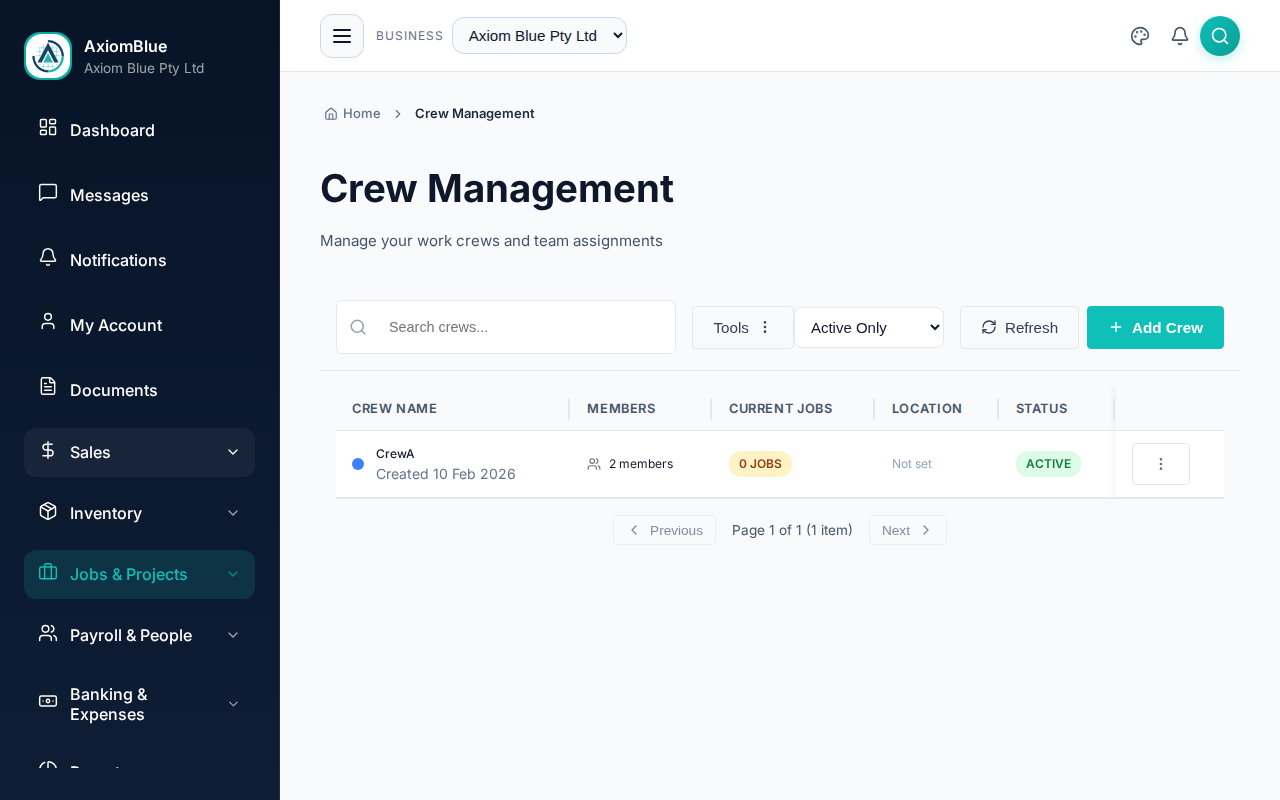
Each row shows Crew Name, Members, Current Jobs, Location and Status. Search by name, or use the status filter for Active Only and Inactive Only.
Create a crew
- Select Add Crew.
- Enter the Crew Name — for example
Alpha TeamorInstallation Crew A. Up to 100 characters. - Pick a Color Code — this is how the crew is identified on the calendar and schedules.
- Enter a Home Base Address (Optional) — the depot or yard this crew starts from. The scheduler measures travel time from here.
- Select Create Crew.
The crew is created empty. Members are added on the crew's own page.
Building several crews at once? The Options menu on the crew list has Generate Crews Automatically. Choose a crew size and a naming scheme, preview what it will build, then create the lot in one go. It skips any name that already exists.
Add members to a crew
Open a crew, then select Add Member on the Crew Members card.
- Choose the Member Type — Employee or Asset/Vehicle.
- Search for the employee or asset and select it. Employees can be found by name, employee number, position or email.
- Enter a Role (Optional) — for example
DriverorEquipment. - Tick Is Crew Leader if this employee runs the crew. A leader is shown with a Leader badge, and the role box is set for you.
- Select Add Member.
Adding a vehicle or a piece of equipment to a crew works the same way — pick Asset/Vehicle as the member type. Remove any member from the same card at any time.
The crew page
Alongside Crew Members, a crew's page carries:
- Crew Skills & Certifications — everything the crew's members hold between them.
- Job History — work this crew has done.
- Check Availability — enter a date range to see whether the crew is free.
- Crew Information — status, colour code and home base.
- Team Composition — the employee and asset counts.
- Current Activity — how many jobs the crew has open.
- Recent Customers.
Scheduling a crew
Once a crew has members, it appears on the crew calendar at Jobs & Crews > Calendar & Schedule, where you assign jobs to it day by day. The Dispatch Map in the same section plots those crews and their work on a map.
To have the auto-scheduler pick crews by qualification, give your people skills first — see Skills & Certifications and Auto-Scheduling Jobs.