Understanding Your Dashboard
Your dashboard is the first screen you see after signing in. It answers one question — what needs your attention today — rather than showing every number about your business. This article names each card and what puts something in it.
Applies to: every plan, no permission required to open it. Individual cards check your permissions — you see the money cards only with finance access, and the jobs card only with jobs or schedule access.
Prerequisites: Navigating the Portal
How the dashboard is laid out
The dashboard is a fixed two-column layout, headed Dashboard with the subtitle "What needs your attention today." A wide left column carries the working cards. A narrower right-hand rail carries the things you act on directly.
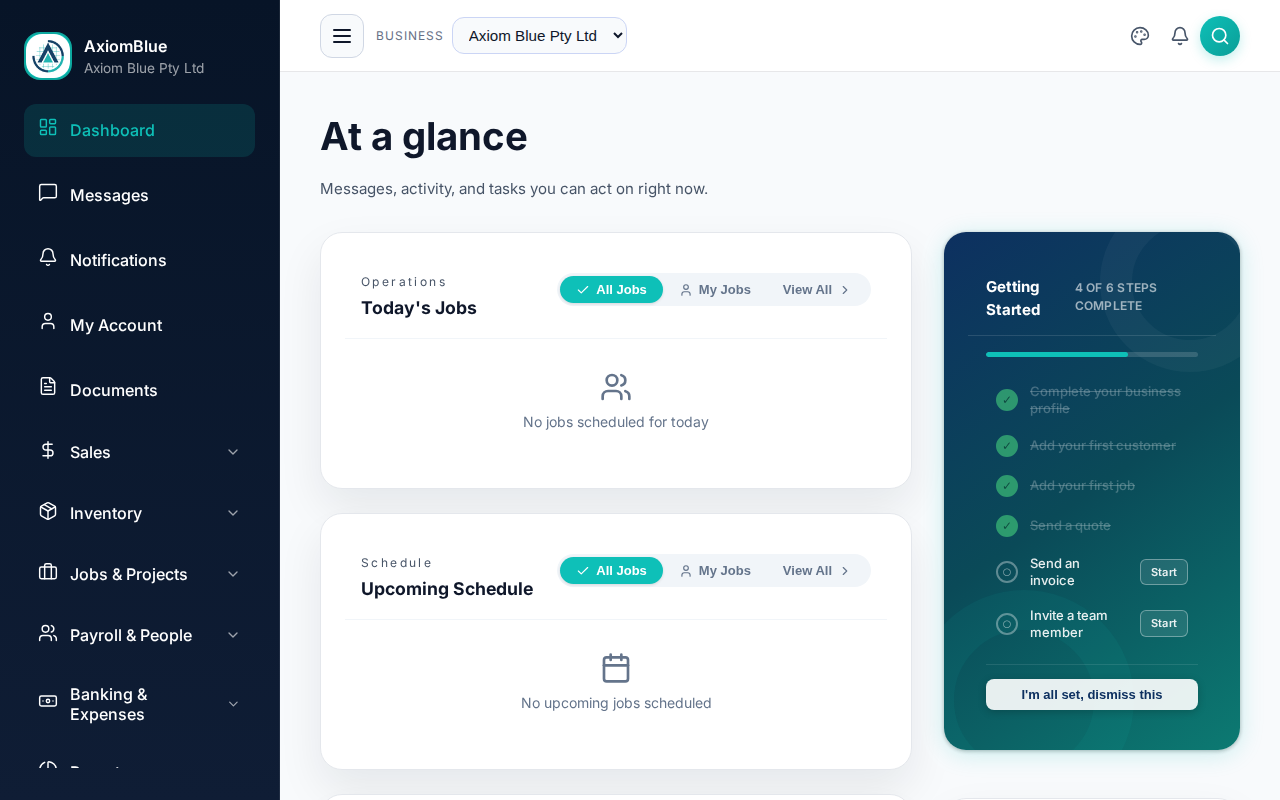
The dashboard is not configurable. There is no widget picker, no drag-and-drop and no per-user layout. Which cards appear is decided by your permissions and by whether anything needs doing. For charts and trends, use the Reports section instead.
Operations
Two panels side by side, showing the work in front of your crews:
- Today — jobs scheduled for today, each with its start time, title, customer, status, and how many of its crew have clocked on
- Upcoming — the jobs after that, each with the day it falls on
With nothing booked, the panels read "No jobs scheduled today" and "No upcoming jobs scheduled". When there are more jobs than fit, a View all link takes you to Jobs & Crews > All Jobs. An Add Job button sits in the card header if you can create jobs.
This card appears only if you can see jobs or your own schedule.
Needs attention
One row per thing that might need chasing. Selecting a row opens the matching list, already filtered.
Three rows are always present, permissions allowing, and say "Nothing due" when all is well:
- Receivables — invoices overdue and due soon. Needs accounts receivable access.
- Payables — bills overdue. Needs accounts payable access.
- Tasks — your CRM tasks.
Three more rows appear only when there is something to act on, and vanish again once you clear it:
- Inventory — items running low on stock
- Leads — new enquiries you haven't looked at
- Quotes — quotes expiring soon
With no visible rows at all, the whole card disappears.
Recent activity
The last six things that happened in your business, newest first. Use it to catch what someone else changed while you were on site.
The right-hand rail
Getting started
A setup checklist, shown to business owners until they finish or dismiss it. It shows your progress as "3 of 7 complete", names the single next step, and offers a button that takes you straight there. Select View checklist to see every step, with a Start link beside each one you haven't done. On a trial, "Choose your plan" joins the list.
Messages
Your unread internal messages, up to three. With none waiting it reads "No unread conversations". See Messages & Notifications.
Quick actions
Four shortcuts that skip straight to a blank form: New Job, Quote, Invoice and Customer. Each one appears only if you hold the permission to create that record.
What you should see
A dashboard where every row is either green and quiet or a link to something you can fix. If a card you expect is missing, the cause is a permission you don't hold — or, in the case of Needs attention rows, nothing needing attention.
Want charts and trends? The dashboard deliberately holds none. Open Reports in the sidebar for the Financial Dashboard, Sales Dashboard and Customer Dashboard, plus reports on aged receivables, payment behaviour, crew throughput and client retention.