Automation Overview
A workflow runs a chain of steps for you whenever something happens in your business: a job finishes, an invoice falls overdue, or the clock hits 6am on a Friday. This article explains how workflows are put together and where to find them.
Applies to: Professional plan. Requires the crm:automations:view permission. You can build and save workflows on a trial or in the demo, but you cannot activate one until the business is on a paid Professional subscription.
Where to find workflows
Open Workflows > All Workflows in the left sidebar. The page is titled Workflows and lists every workflow this business has, with four columns: Name, Trigger, Status and Updated.
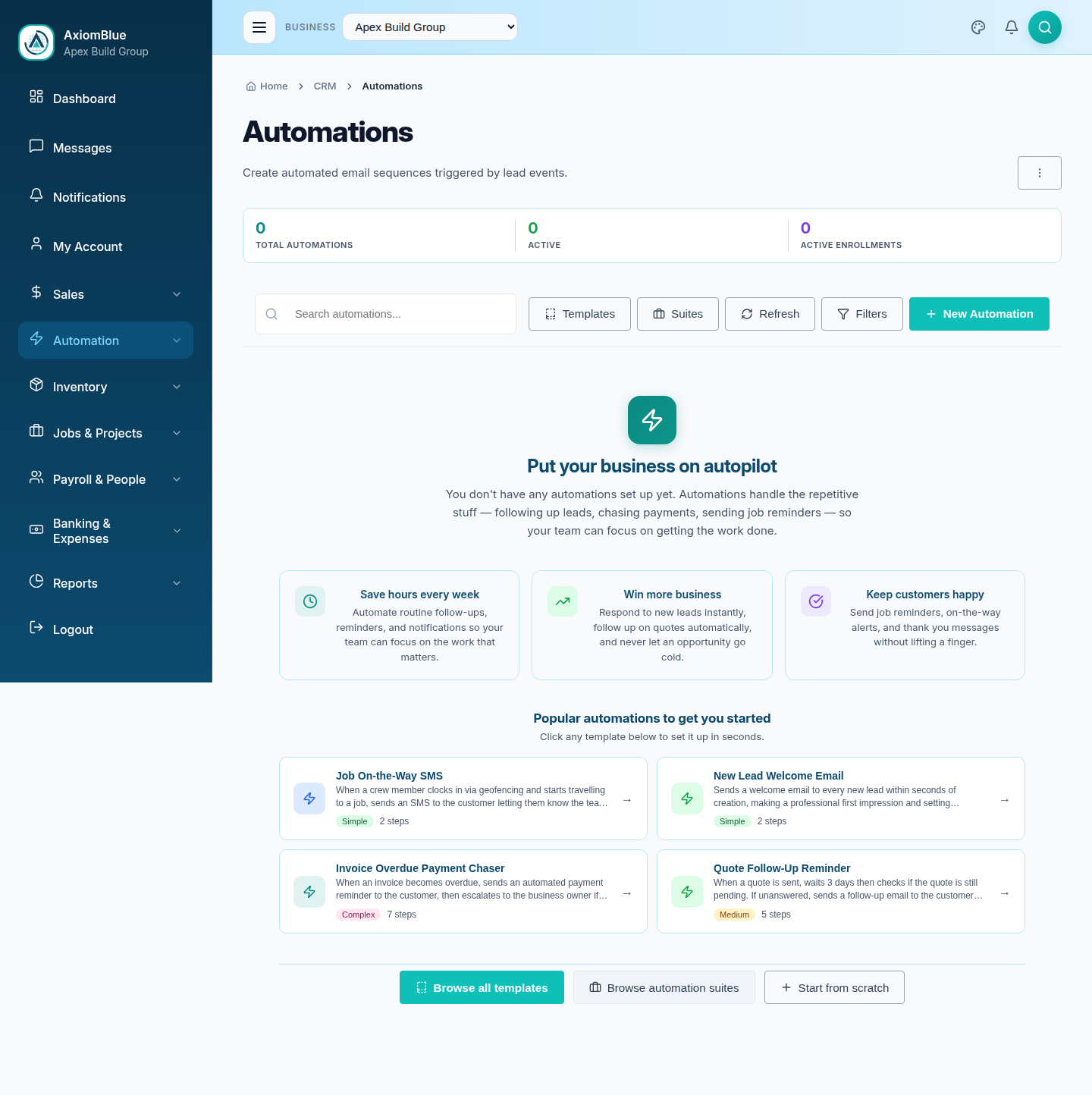
Three counters sit above the list:
- Total Automations — every workflow, active or not
- Active — the ones currently switched on
- Active Enrollments — records part-way through a workflow right now
The Filters panel narrows the list by status to Active or Inactive.
How a workflow is built
A workflow is a graph of nodes joined by arrows, drawn left to right. Every workflow starts with exactly one trigger node, and each node passes its result along the connection to the next one.
Triggers
The trigger decides when the workflow runs. Three are available to every business:
- Event Trigger — runs when a chosen business event fires, such as a job being completed or an invoice going overdue. An optional AQL filter narrows which events count.
- Schedule — runs on a cron expression in a timezone you pick, so a workflow can sweep for overdue bills every weekday at 8am.
- Webhook — runs when an outside system posts to a URL, with optional HMAC signature verification.
AQL is AxiomBlue Query Language, a SQL-like syntax for selecting records. The editor has a visual builder for it, so you do not have to type it by hand.
Actions
Actions do the work. Five are general-purpose: Send Email, Send SMS, Notification, In-App Message and Fire Webhook. The rest of the toolbox is a catalogue of domain actions that understand your data — starting a job, clocking a worker on, adjusting stock, invoicing a completed job, tagging a customer.
Conditions and logic
Logic nodes route records rather than changing them. Branch and Filter test a condition, Switch routes by a field value, and Delay pauses before the next step. Domain conditions such as Job status is or Item is below reorder point do the same job with no query writing.
Lookups
A scheduled workflow has no record to work on until it finds one. Lookup nodes in the Find & Look Up section of the toolbox do that — Find jobs by date, Find bills due soon, Find items below reorder point, Find expiring tickets & certifications. Some fan out, running everything downstream once per row they return.
Triggers, Actions & Logic lists what each node does.
Active and paused
Each workflow is either Active or Inactive. Only an active workflow reacts to events or runs on its schedule. The Pause and Activate row actions flip the state without deleting anything, so you can stop a workflow and restart it later with its configuration intact.
New workflows are created inactive, including every workflow installed from a template or a suite. Nothing you install starts firing until you switch it on.
Start from a template instead of a blank canvas
An empty Workflows page offers three ways in:
- Browse all templates — the library of ready-made workflows, grouped by category
- Browse automation suites — a bundle of templates picked for one trade, such as Plumber or Cleaning Service
- Start from scratch — an empty canvas
Once you have workflows, the same choices sit behind New Automation on the toolbar.
Tip: Start from a template. Each one arrives with its trigger, timing and wording already set, and you edit only the parts that differ for your business.
Switches instead of a canvas
Most owners never need the editor. Ten domain Settings pages carry the common workflows as plain on/off switches, with the handful of settings people actually change ("chase after 5 days, not 7") sitting under each switch:
- Lead Settings, Quote Settings, Communication Settings
- Job Settings, Timesheet Settings, Project Settings
- Invoice Settings, Purchasing Settings
- Inventory Settings, People Settings
Switching one on installs the matching workflow and activates it. Switching it off deactivates the workflow without destroying it. Editing the workflow on the canvas changes what the switch shows, because both read the same nodes.
What you should see
Open Workflows > All Workflows and you get either the list of your workflows or the getting-started page with popular templates on it. Both are correct — the second one just means you have not built anything yet.
Next: Templates & Suites to install a ready-made workflow, or The Visual Automation Editor to build your own.