Templates & Suites
AxiomBlue ships 34 ready-made workflows and 19 trade suites that bundle them. Installing one takes seconds and gives you a working flow to adjust, rather than a blank canvas.
Applies to: Professional plan. Requires the crm:automations:view permission. Templates and suites install on a trial or in the demo, but the workflows they create cannot be activated until the business is on a paid Professional subscription.
Install a template
- Go to Workflows > All Workflows and select Templates. On an empty page the same library opens from Browse all templates.
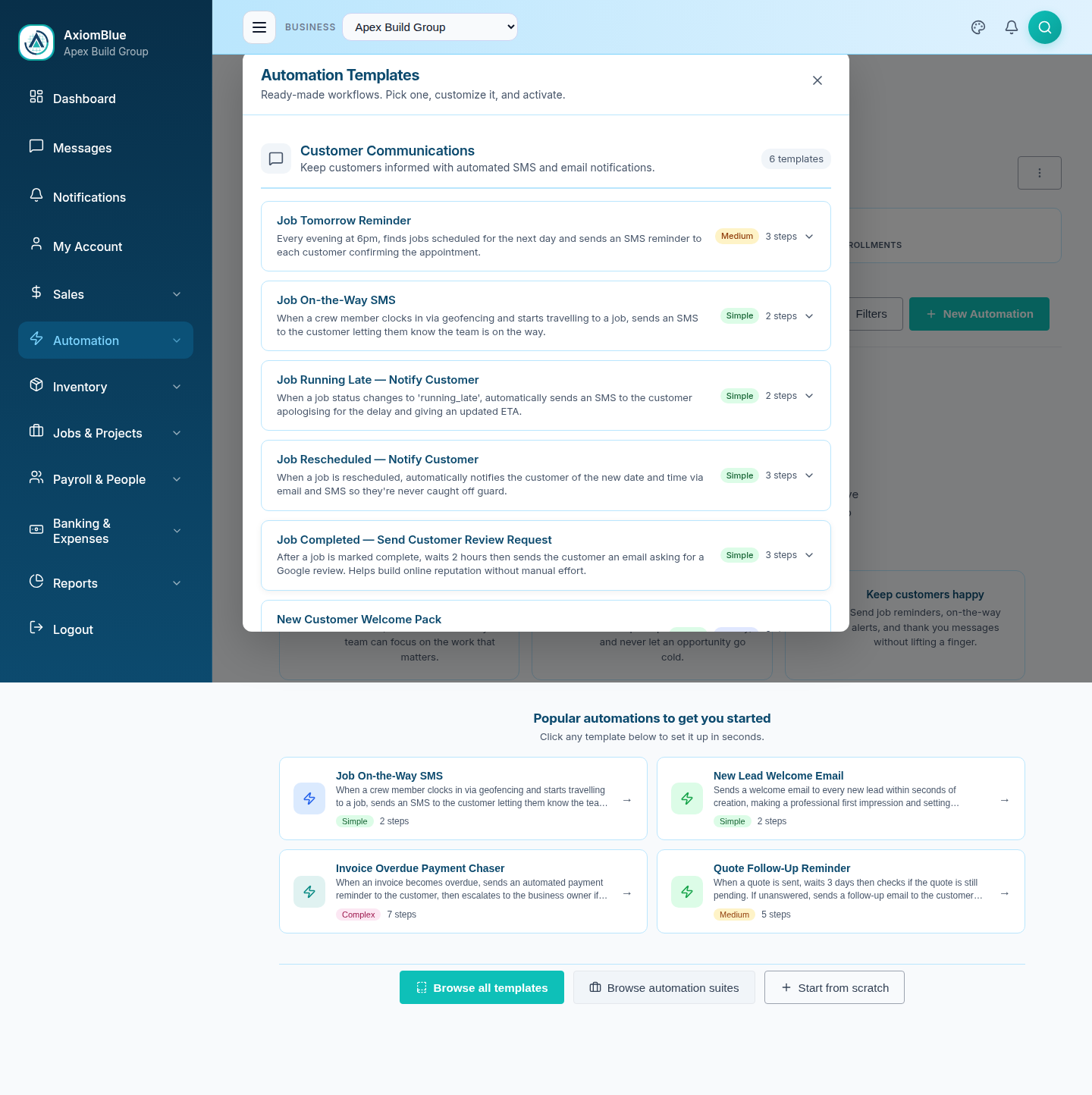
- Find a template. Each card shows what it does, a complexity badge of Simple, Medium or Complex, and how many steps it has.
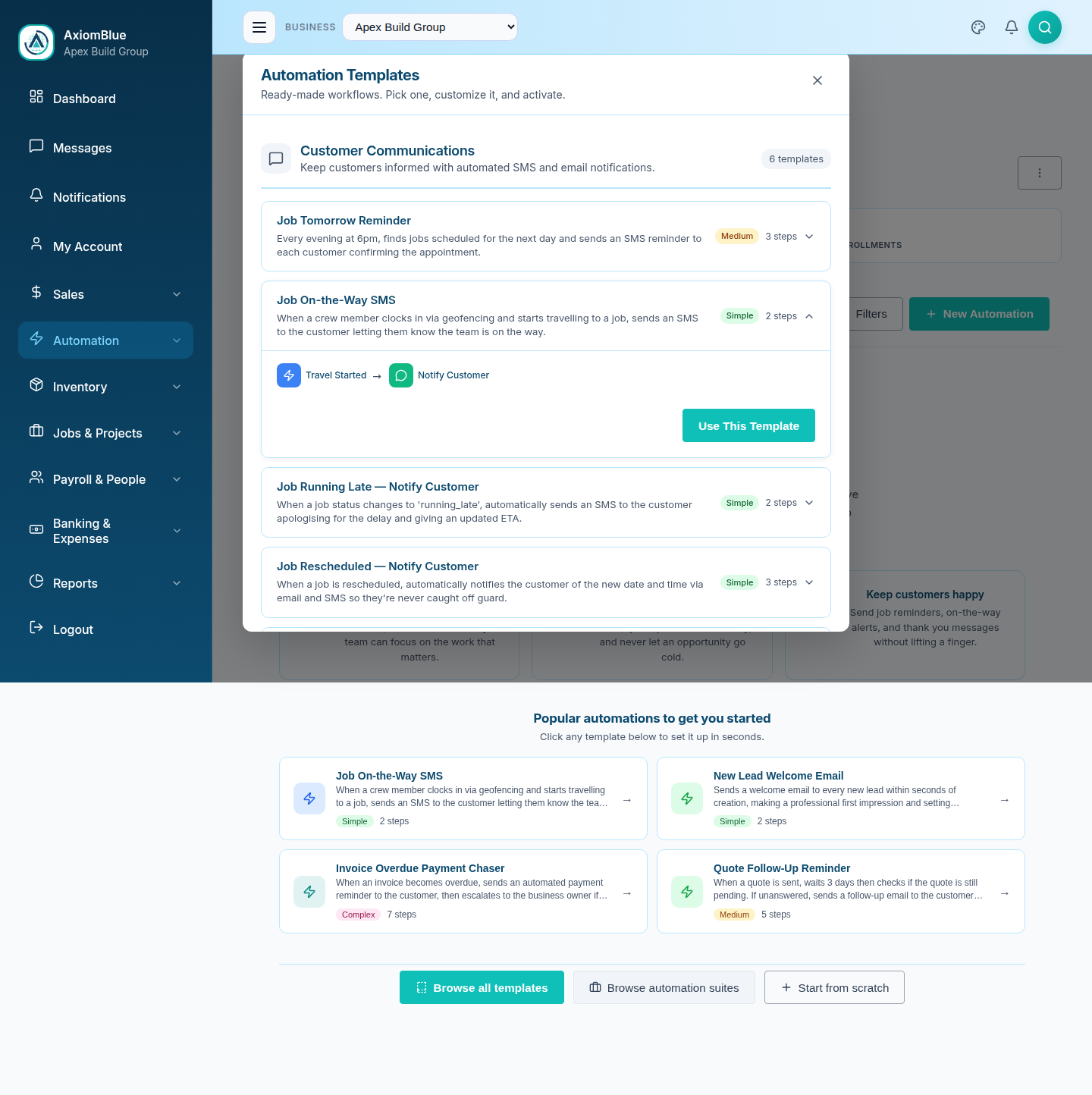
- Select the card to expand it — a diagram of the flow appears so you can see the steps before committing.
- Select Use This Template. The editor opens with every node already placed and configured.
- Change what needs changing: the wording of a message, how long a delay waits, who gets notified.
- Select Save, then switch the status to Active and save again.
What is in the library
The 34 templates sit in seven categories.
Customer Communications
Keeps customers informed by SMS and email: Job Tomorrow Reminder, Job On-the-Way SMS, Job Running Late — Notify Customer, Job Rescheduled — Notify Customer, Job Completed — Send Customer Review Request, New Customer Welcome Pack.
Sales & Quoting
Chases leads and quotes: New Lead Welcome Email, Lead Pipeline Stage Change Notification, Quote Follow-Up Reminder, Quote Accepted — Auto-Create Job, Quote Expiry Warning, Quote Auto-Expire and Notify.
Invoicing & Payments
Protects cash flow: Invoice Overdue Payment Chaser, Invoice Paid — Thank You Email, Job Completed — Auto-Generate Invoice, Bill Due Date Reminder, Weekly Unbilled Jobs Report.
Job Operations
The largest group, covering crew scheduling and the things people forget: New Job Needs Crew Assignment, End-of-Day Crew Summary, Weekend Job Emergency Escalation, No-Show Job Follow-Up, Recurring Job Reminder — Service Due, Forgotten Job Completion Reminder, Forgotten Clock-Out Reminder, Auto-Start Timesheet on Job Site Entry, Auto-Close Timesheet on Job Site Exit.
HR & Compliance
Tracks tickets and leave: Leave Request Approval Notification, Leave Approved — Check Job Coverage, Employee Certification Expiry Warning, Employee Onboarding Checklist.
Inventory & Stock
For businesses that carry materials: Low Stock Alert, Inventory Used on Job — Auto-Deduct Stock, Inventory Received — Update Stock and Notify.
Projects & Milestones
One template: Project Milestone Reached — Invoice Phase, which raises a progress claim as a project passes each milestone.
Install a suite
A suite is a shortlist of templates chosen for one kind of business. Installing a suite is a way of answering "which of these 34 apply to me" without reading all 34.
- On the Workflows page, select Suites.
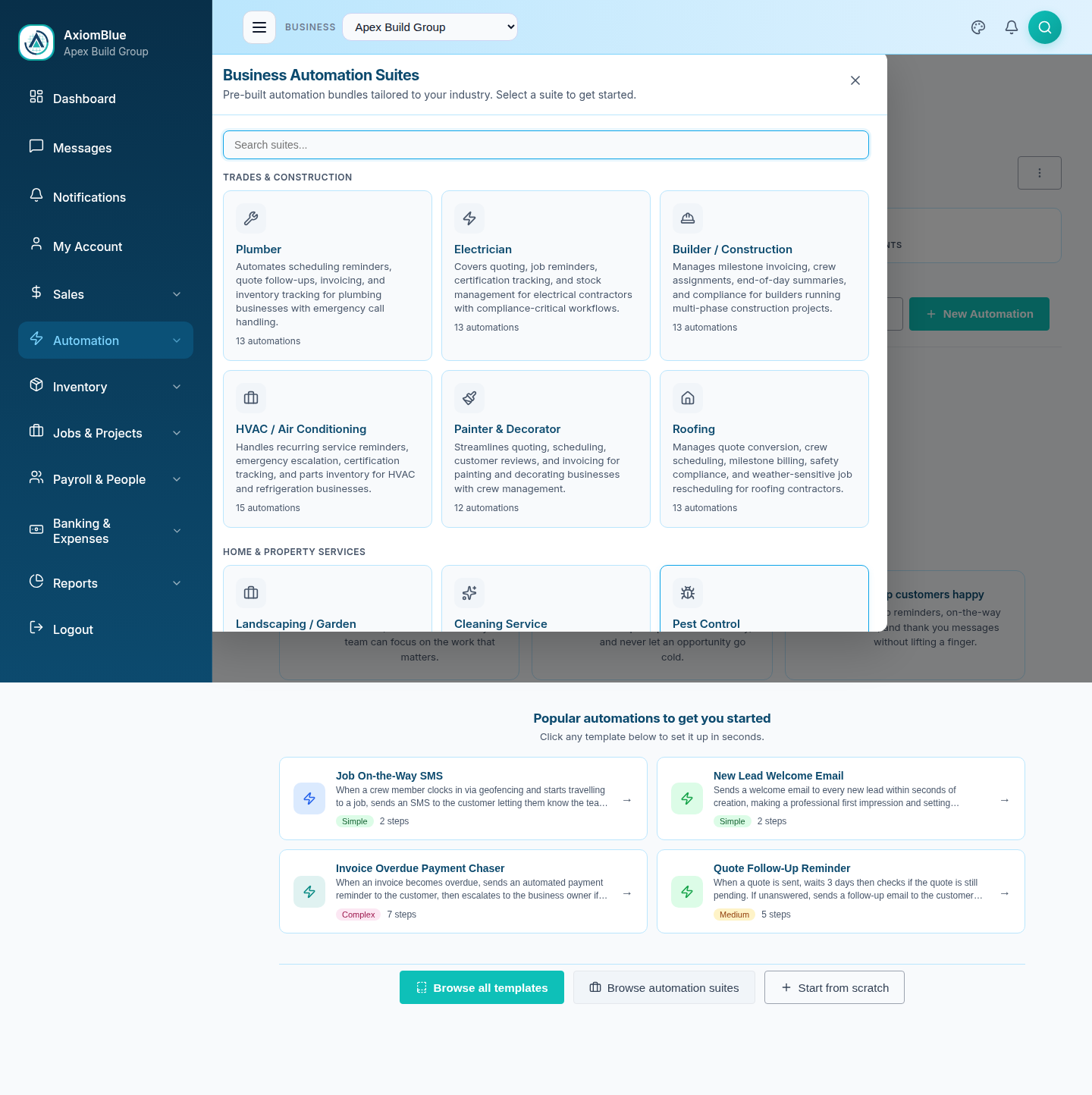
- Find your trade in the Business Automation Suites list, or type into Search suites….
- Select the suite. The Customize Suite step lists every workflow it would create, with the recommended ones already ticked.
- Tick and untick individual workflows, or use Select All and Deselect All.
- Select Create — the button names the count, for example Create 4 Automations.
- Watch the progress list, then select Done.
The suites
- Trades & Construction — Plumber, Electrician, Builder / Construction, HVAC / Air Conditioning, Painter & Decorator, Roofing
- Home & Property Services — Landscaping / Garden Maintenance, Cleaning Service, Pest Control, Pool Maintenance, Real Estate / Property Management
- Professional Services — Building Inspector, Architect / Engineering Consultant, IT Services / MSP
- Health & Beauty — Hairdressing Studio, Beauty / Day Spa
- Specialist Services — Automotive Mechanic, Solar Panel Installer, Security Systems
Pick the closest match rather than an exact one. A pest control business and a pool maintenance business install much the same set, and you untick anything that does not fit.
What you should see
After installing, the new workflows appear in Workflows > All Workflows with an Inactive badge. Nothing has fired yet. Open each one, check it, then activate it.
Tip: Install a suite early. Everything arrives inactive, so there is no risk in installing more than you need — you review each workflow and turn on only the ones you want.
Changing an installed workflow
A workflow created from a template or a suite is an ordinary workflow. Open it in the editor and change any node — swap the email template, adjust a delay, add a condition, delete a step. Your changes affect your copy alone; the library is untouched and other workflows built from the same template stay as they are.
Templates that send SMS need SMS configured first. Several of these workflows text customers. Without SMS set up for the business, the flow runs and fails at its Send SMS step. Check the message-sending steps before activating.
Next: The Visual Automation Editor to adjust what you installed.