Creating & Managing Projects
A project groups work that runs longer than a single job — a build, a fit-out, a staged installation. It gives that work a budget, a schedule and a set of tickets. This article covers creating one and reading its overview page.
Applies to: Professional plan. Requires the projects:all:read permission to open the page and projects:all:create to add one.
Prerequisites: the customer the project is for. See Managing Customers.
The Projects page
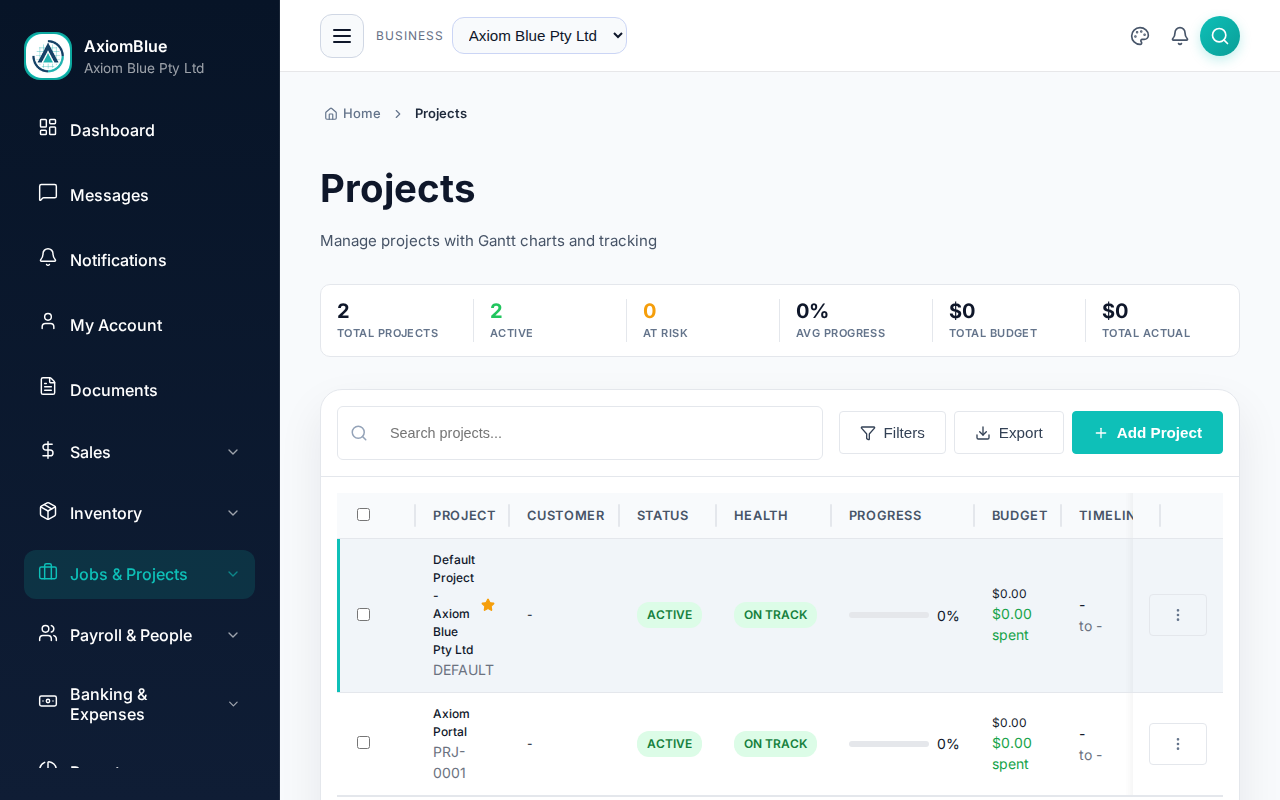
Go to Projects > All Projects. Six counters sit across the top: Total Projects, Active, At Risk, Avg Progress, Total Budget and Total Actual.
The list below shows Project, Customer, Status, Health, Progress, Budget and Timeline. The search box needs at least three characters before it runs.
Create a project
- Select Add Project.
- Enter the Project Name — the only required field.
- Pick the Customer and the Project Type.
- Set Status and Priority. A new project usually starts at Planning.
- Set Planned Start and Planned End.
- Fill in the Budget section — Labor, Materials, Equipment, Subcontractor and Other. Total Budget adds them up for you and cannot be typed into directly.
- Add the Site Address and any Notes.
- Select Create Project.
You should land back on the list with the new project in it and a project number assigned.
Status, priority and health
Three separate fields describe where a project stands, and it helps to keep them apart:
- Status — where the project is in its life: Planning, Active, On Hold, Completed, Cancelled.
- Priority — how it ranks against your other projects: Low, Medium, High, Critical.
- Health — how it is tracking: On Track, At Risk, Behind, Ahead. Set it from the Modify Budget & Financials dialog on the project, alongside a Progress (%) figure.
The project overview
Selecting a project opens its Overview. A row of tabs sits above every project page: Overview, Board, Tickets, Sprints, Backlog, Epics, Gantt, Metrics, Settings.
The Overview itself carries these cards:
- Project Details — name, description, status, priority and planned dates, all editable in place. Project number, customer and project manager show but cannot be changed here.
- Notes
- Tickets — the ten most recent, with View All
- Jobs — field jobs linked to this project, with View All
- Budget & Costs — budget against spend, a utilisation bar, variance, and a breakdown by category. Modify opens the budget dialog.
- Active Sprint — the running sprint and its point progress, or Plan Sprint if there is none
- Quick Links — a collapsible list of the other project pages
Editing a field in place turns on a Save Changes button in the header. Nothing is stored until you select it.
The Gantt chart
The Gantt tab draws the project's tasks on a timeline you can view by Day, Week or Month. Select + Add Task to add one, giving it a Task Name, a Type of Task, Milestone or Summary, dates, a duration, a progress percentage and an optional Parent Task. Project milestones appear on the timeline as diamond markers.
Gantt tasks and tickets are different things. Tasks belong to the Gantt timeline; tickets belong to the board, the backlog and sprints. Adding one does not create the other.
Tip: Use a project when work spans weeks and several people need a shared view of it. A day's work for one crew is a job, and a job carries far less overhead. You can link jobs to a project and get both.
Next: Tickets & Backlog to break the project into work items.